Custom Transmission Settings
NOTE: All settings pertaining to this page are only applicable when Efficiency Manager™ is not in Full Auto Mode.
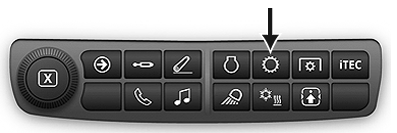
RXA0133712-UN-16JUL13
Transmission Shortcut Button on Navigation Bar
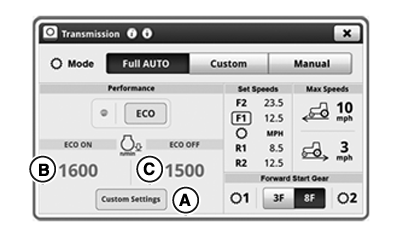
RXA0143050-UN-07OCT14
Transmission Home Page
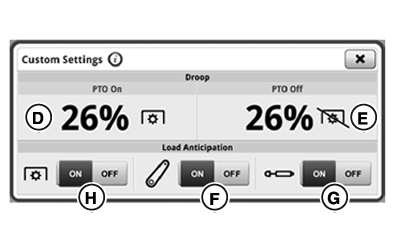
RXA0130327-UN-07OCT14
Custom Settings Page
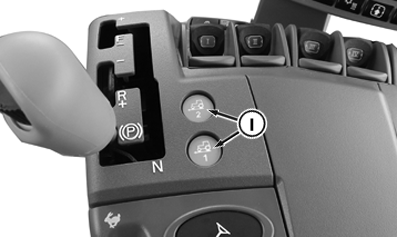
RXA0142302-UN-07OCT14
Efficiency Manager™ Buttons
A - Custom Settings Button
B - ECO Engine Speed ON Module
C - ECO Engine Speed OFF Module
D - Engine Droop PTO ON Module
E - Engine Droop PTO OFF Module
F - Hitch Load Anticipation Toggle
G - SCV Load Anticipation Toggle
H - PTO Load Anticipation Toggle
I - Efficiency Manager™ Buttons
Auto Shift Engine Speed Droop sets amount of engine speed drop (under full load) allowed before Custom mode automatically downshifts. A lower percentage will result in less drop being allowed before downshift.
Under light loads, fuel can be saved by shifting up and throttling back. In Custom mode the Efficiency Manager will shift up and throttle back to the minimum engine speed selected. The minimum engine speed selection can be toggled between 2 adjustable values (B and C) by toggling between ECO ON/OFF.
Load Anticipation features allow Efficiency Manager™ to predict loads due to activation of hitch, SCV or PTO movement. This section determines whether transmission downshifts and raises engine speed above desired minimum rpm when hitch, SCV or PTO are used. If hitch is lowered or raised, system downshifts if engine speed drops below 1500 rpm. If SCV is set to extend or retract above 25% flow rate, transmission downshifts automatically if predicted rpm is below desired minimum. SCV set to continuous flow causes transmission to downshift automatically if predicted rpm is below desired minimum. Load Anticipation is enabled in Full Auto mode by default. In Custom or Manual mode, load anticipation for hitch is enabled when hitch toggle (F) is turned ON. In Custom or Manual mode, load anticipation for SCVs is enabled when SCV toggle (G) is turned ON. In Custom or Manual mode, load anticipation for PTO is enabled when PTO toggle (H) is turned ON. Anticipation features are only active in Manual mode when using Efficiency Manager™ via command buttons 1 and 2 (I).
RXA0133712-UN-16JUL13
Transmission Shortcut Button on Navigation Bar
RXA0143050-UN-07OCT14
Transmission Home Page
RXA0130327-UN-07OCT14
Custom Settings Page
A - Custom Settings Button
B - ECO Engine Speed ON Module
C - Engine Droop PTO ON Module
D - Engine Droop PTO OFF Module
E - Hitch Load Anticipation Toggle
F - SCV Load Anticipation Toggle
G - PTO Load Anticipation Toggle
-
Press Menu Button.
-
On Mode bar, select Custom or Manual Mode.
Set Auto Shift Engine Speed Droop PTO ON
NOTE: Auto Shift Engine Speed Droop PTO ON can be set from 6% —26 %.
- From Transmission page, select Custom Settings button (A).
- Select Auto Shift Engine Speed Droop PTO ON module (D). Value adjustment page appears.
- Adjust percentage value to desired value by using increase (+) and decrease (-) buttons.
Set Auto Shift Engine Speed Droop PTO OFF
NOTE: Auto Shift Engine Speed Droop PTO OFF can be set from 14% — 26 %.
- From Transmission page, select Custom Settings button (A).
- Select Auto Shift Engine Speed Droop PTO OFF module (E). Value adjustment page appears.
- Adjust percentage value to desired value by using increase (+) and decrease (-) buttons.
Turn Load Anticipation ON
- From Transmission page, select Custom Settings button (A).
- Use Hitch Load Anticipation toggle (F), SCV Load Anticipation toggle (G) or PTO Load Anticipation toggle (H) to turn hitch, SCV or PTO load anticipation ON or OFF.
|
RD47322,000051C-19-20140711 |