Operating Phone
RXA0133719-UN-16JUL13
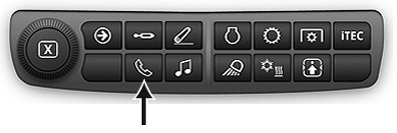
Phone Shortcut Button on Navigation Bar
RXA0125984-UN-13SEP12
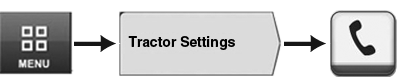
Menu → Tractor Settings Tab → Phone Icon
RXA0137742-UN-11DEC13
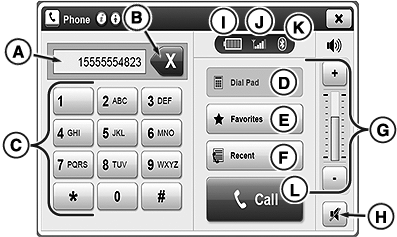
Phone Home Page
NOTE: Bluetooth® enabled device must be paired before using Phone application. For more information about pairing devices see Pairing Bluetooth® Device—On Generation 4 CommandCenter™ in this section of this Operator’s Manual
- Select Menu.
- Select Tractor Settings tab.
- Select Phone icon.
NOTE: Phone options A, B, C and E are not available during call. Use cell phone if another number is needed.
Phone controls on this page are disabled while device is syncing with radio.
A—Input Box: Area to input phone number.
B—Backspace Button: Cancel typed digit. Press and hold to cancel multiple digits.
C—Dial Pad: Enter phone number using number buttons.
D—Dial Pad Tab: Press to display dial pad during phone call.
E—Favorites Button: View/edit favorites contacts.
IMPORTANT: Favorites are stored permanently and can be viewed by any operator. Clear favorites before leaving tractor, if necessary.
F—Recent Button: Review previous missed calls, incoming calls, or outgoing calls.
G—Volume Control: Adjust volume.
H—Mute Button: Mutes microphone.
I—Battery Icon: Displays battery life.
J—Signal Icon: Displays current phone signal strength.
K—Bluetooth® Icon: If blue, Bluetooth® device is connected. If grayed out, Bluetooth® device is not connected.
L—Call Button: After dialing or selecting number, press to begin call.
|
Bluetooth is a trademark of Bluetooth SIG CommandCenter is a trademark of Deere & Company |
TO84419,000008D-19-20140724 |