File Manager

PC16671-UN-18MAR13
File Manager
File Manager application is used to transfer data to and from the display. Data can either be transferred wirelessly with John Deere Operations Center, or use a USB drive to transfer data between displays or compatible desktop software.
It is important to backup data to a USB drive periodically.
Display internal memory is intended to have enough capacity to store all data from a machine per season. A message appears when 95% of memory is used. Data should be exported and deleted before memory used exceeds 95%.
Navigate to File Manager
-
Select Menu.
-
Select System tab.
-
Select File Manager Application.

PC17398-UN-22OCT14
Settings
Factory Data ResetSelect settings at the top of File Manager application to open Factory Data Reset.
Process removes all user data from display and cannot be undone. User data includes setup and documentation data, guidance information, totals, and custom run page layouts. Language and regional setting,s and activations are not reset. A reboot is required after reset.
Factory Data Reset should be performed prior to selling machine.
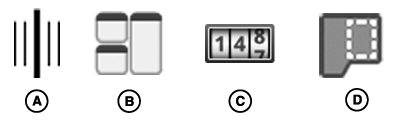
PC21839-UN-16NOV15
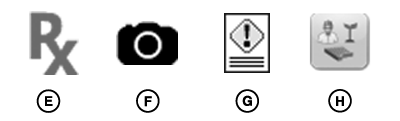
PC21840-UN-30NOV15
A - Guidance Tracks
B - Custom Run Pages
C - Work Data
D - Boundaries
E - Prescriptions
F - Screenshots
G - Error Logs
H - Setup Data
Data Types-
Guidance tracks (A) include guidance lines and associated client,
farm, and field names.
-
Custom run pages (B) can be transferred between Generation 4
Displays that are the same size. Run pages can be shared between 7
inch displays, or between 10 inch displays.
NOTE: Imported run pages are available on the All Run Pages
tab in Layout Manager.
Some run page modules reset to default settings when imported.
Run page modules created for ISOBUS VT implement controllers appear as unavailable if controller is not connected to machine.
-
Work data (C) includes mapping and totals data. It can be uploaded
to John Deere Operations Center, or unloaded into compatible desktop
software. Work data cannot be imported into the Generation 4 Display.
NOTE: Exporting work data requires a 4600 processor with a Documentation
activation.
-
Boundaries (D) are configured using Fields application.
-
Prescriptions (E) are configured using Work Setup application.
-
Screenshots (F) copy the image displayed on the screen. (Refer
to Capture Screenshots for instructions.)
-
Error Logs (G) are automatically generated by the display and
can be used by John Deere to troubleshoot issues.
- Setup Data (H) includes client, farm, and field names, crop varieties, and products.

PC21844-UN-16NOV15
Data Sync
Data SyncData Sync is used to manually or automatically send work data directly to John Deere Operations Center. Data is transferred using cellular signal through the modular telematics gateway (MTG).
Data Sync Preference
To automatically send work data, select “Automatically Sync Work Data” checkbox. Data is sent to John Deere Operations Center when MTG is in cellular coverage. If cellular coverage is not available, work data is stored on the display. Data is sent when cellular signal is reacquired and MTG is able to make a call.
Data Triggers
Even though work data is automatically sent from the display to John Deere Operations Center periodically, files cannot be viewed in the Operations Center until one of these triggers occur:
- Start New Work, or change client, farm, or field.
- Lose cellular communication between display and John Deere Operations Center for more than 30 minutes.
- Turn key off, and then turn key on within 30 minutes.
- Turn key off for more than 30 minutes.

PC20405-UN-30APR15
Import Data
Import DataSelect import method:
- Import from USB Drive – Select folders on USB drive that contain data to be imported.
- Import Received Files – Import setup and prescription files from John Deere Operations Center.
After setup files and prescriptions are imported to the display, use Work Setup to apply the file. Reference help files on John Deere Operations Center for how to create and send setup files to the Generation 4 Display.
Compatibility
Data can be transferred from another Generation 4 Display, GreenStar™ 3 2630 Display, compatible desktop software, or John Deere Operations Center.
John Deere Operations Center does not support the ability to view, send, or receive run pages. If a setup file only contains run pages, the file displays as invalid in John Deere Operations Center. If a setup file contains guidance lines or boundaries, and run pages, the setup file loads correctly, though run pages are not viewable.
NOTE: Update Apex™ or third-party desktop application if there are issues with transferring data.
Choose GS3 2630 card format when exporting from Apex™. To use guidance lines from other GreenStar™ displays, unload guidance lines into Apex™ and then export in GS3 2630 card format.
Data Conflicts
When necessary, imported client, farm, and field names are changed. For example, "Field1" is renamed "Field1(1)".
If guidance lines are in the same field and created with the same tracking method, the display handles the following conflicts.
Different Name, Same Line
- If lines are the same, name of guidance line on display is replaced by name on USB drive.
Same Name, Different Line
- If there are two different lines with the same name, line on USB drive is renamed when imported. For example, "Track1" is renamed "Track1(1)".
NOTE: A file may fail to import for multiple reasons. To determine which file is causing problems, remove individual files from USB drive and attempt to import remaining files.

PC20406-UN-30APR15
Export Data
Export DataSelect export method to transfer desired data types.
- Select Custom Export to transfer run pages and field-specific work data and guidance lines.
- Select Export All Data to quickly transfer all work data, guidance lines, and run pages using default settings.
- Select Diagnostic Data to transfer screenshots and error log files.

PC20407-UN-30APR15
Delete Data
Delete DataDelete data removes selected data types from the display.
- Select Custom Delete to remove work data, guidance lines, and run pages.
- Select Clear Diagnostic Data to remove screenshots and error log files.
|
GreenStar is a trademark of Deere & Company Apex is a trademark of Deere & Company |
DX,PC,FILE-19-20151221 |