Sequence Step Status
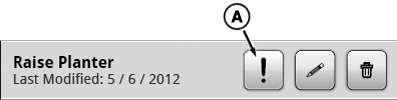
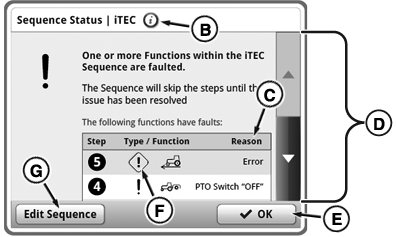
Whenever sequence execution is not possible or is interrupted, iTEC™ system informs operator about new issue by displaying Information Alert (A) or Fault Alert (F) next to sequence or sequence step. Press Alert Symbol next to a sequence (in assignment area or sequence assignment tab) to access the sequence status page to read the steps with errors. Use scroll bars (D) to scroll up and down list. Select edit sequence button (G) to edit selected sequence. Press Alert Symbol next to a sequence step (while in EDIT) for information about the issue dealing with specific step. Both views will show a short text description (C) for the issue.
RXA0131170-UN-05MAR13
Sequence Bar
RXA0131609-UN-25JUL13
Sequence Status Page
A - Information Alert
B - Information Button
C - Text Description
D - Scroll Bar
E - OK Button
F - Fault Alert
G - Edit Sequence Button
NOTE: Press Information Button (B) on any iTEC™ page to access a general status page. General status page will list all functions that are part of the sequences of current selected implement (assignment set).
Edit Page:

RXA0127531-UN-15AUG12
Manage Sequences Button→ Sequence Tab → Edit Button
RXA0131144-UN-25JUL13
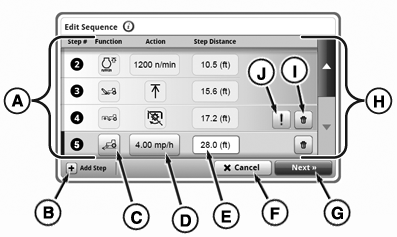
Edit Sequence Page
RXA0131281-UN-25JUL13
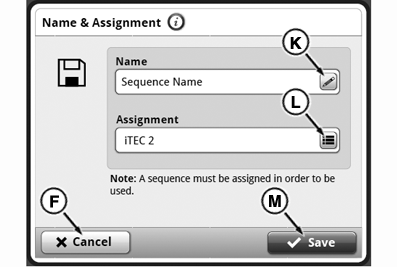
Name & Assignment Page
RXA0131280-UN-25JUL13
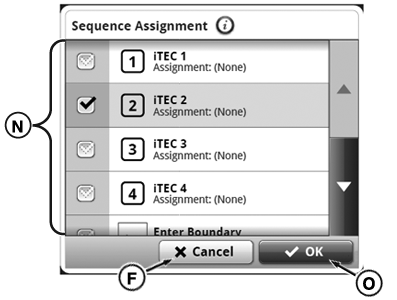
Sequence Assignment Page
From iTEC™ main page:
- Select Manage Sequences button.
- Select Sequences tab.
- Select desired sequence.
- Select Edit button.
-
A — Sequence Step List: List
of steps in selected sequence.
NOTE: Insert new step by selecting step in sequence. Press ‘Add
Step’ button to insert new step. Distance field will be auto-filled
with previous distance. If distance changed, step will be sorted accordingly.
- B— Add Step Button: Add new step to sequence.
- C— Step Function Input Box: Change selected sequence step function.
- D— Step Action Input Box: Change selected sequence step action.
- E— Step Distance Input Box: Access number pad to adjust selected sequence step distance.
- F— Cancel Button: Discard changes without saving.
- G— Next Button: Access next page.
- H — Scroll Bar: Scroll up or down.
- I— Delete Step Button: Deletes currently selected step.
- J— Notification Button: View step issue.
- K — Sequence Name Input Box: Access keypad to rename sequence.
- L— Assignment Button: Assign sequence to an iTEC™ button.
- M— Save Button: Save changes.
- N — Sequence Assignment List: Select button to assign sequence to.
- O — OK Button: Accept changes.
Keyboard
RXA0131300-UN-14MAR13
Keyboard
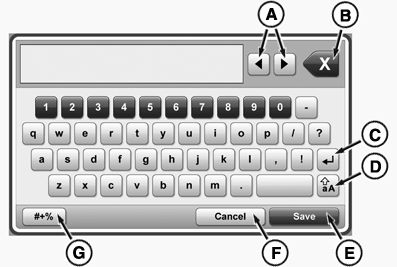
Keyboard display is provided for some editing functions. Example, when sequence name input box is selected, keyboard appears.
- A — Left and Right Arrow Buttons: Move curser right or left in input box.
- B — Delete Button: Delete input box text.
- C — Return Button: Move cursor to next line.
- D — Caps Lock Button: Toggle between capital and lower case letters.
- E — Save Button: Save changes.
- F — Cancel Button: Discard changes without saving.
- G — Symbol Button: Toggle to symbol keyboard
Sequence Assignments Page:

RXA0145567-UN-01OCT14
RXA0131606-UN-26MAR13
RXA0131607-UN-27MAR13
RXA0131283-UN-07MAR13
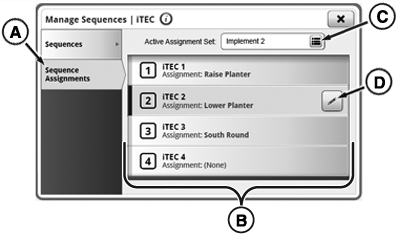
Assignment Set: A set of sequences assigned to certain buttons for example for one implement. Having an assignment set for Planter and Plow will allow an easy switch between assigned sequences by selecting a particular button.
- Select Menu.
- Select Machine Settings tab.
- Select iTEC™ icon.
- Select Manage Sequences button.
- Select Sequence Assignments tab (A).
- A — Sequence Assignment Tab: View or change sequences assigned to buttons.
- B — Sequence Assignment List: List of assignments or openings for potential assignments to buttons.
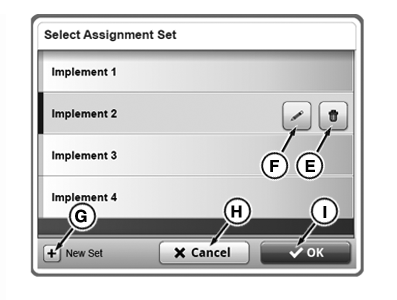
- C — Active Assignment Set Button: Change selected assignment set.
- D — Edit Button: Change selected button assignment and assignment set.
- E — Delete Assignment Set Button: Delete assignment set.
- F — Edit Assignment Button: Change and set assignment name.
- G — New Assignment Set Button: Add a new assignment set.
- H — Cancel Button: Discard changes without saving.
- I — OK Button: Press after highlighting one assignment set to select it.
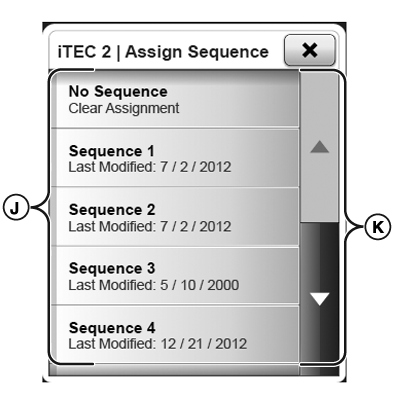
- J — Available Sequence List: Available sequences to assign.
- K — Scroll Bar: Scroll list up or down.
Available Options:
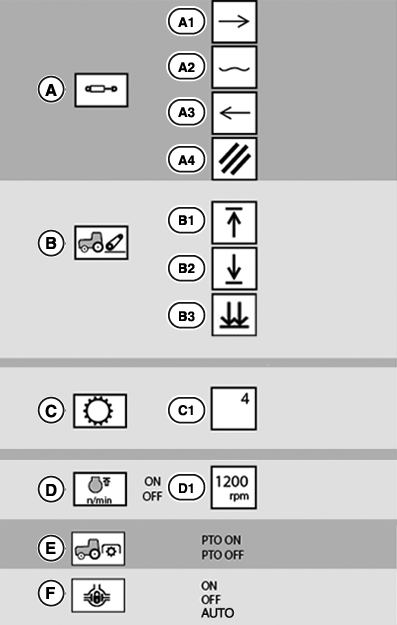
RXA0135379-UN-25SEP13
First Column: Function, Second Column: Action
-
A—SCV's (I through VIII)
- A-1 Extend
- A-2 Float
- A-3 Retract
- A-4 Cancel
-
B—Rear Hitch
- B-1 Raise
- B-2 Lower to set point
- B-3 Fast Lower
-
C—Transmission
- C-1 Gear-Preselect gear. 18 gears available
-
D—Maximum Set Speed On/Off
- D-1 set engine to maximum rpm
- E—Rear PTO On/Off
- F—Differential Lock On/Off/Auto
|
iTEC is a trademark of Deere & Company |
SV81855,0000100-19-20160718 |