Pair Bluetooth® Device to Generation 4 CommandCenter™
RXA0133719-UN-16JUL13
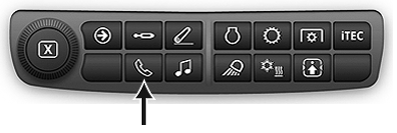
Phone Shortcut Button on Navigation Bar
RXA0147930-UN-13APR15
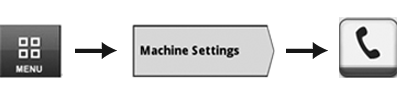
Menu → Machine Settings Tab → Phone Icon
RXA0132157-UN-28JUN13
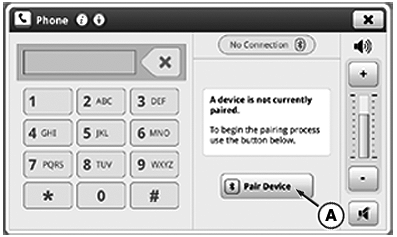
Pair Device Page
RXA0137741-UN-13DEC13
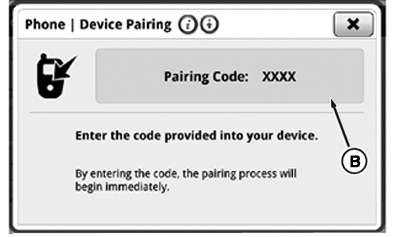
Pairing Code Page
A - Pair Device Button
B - Pairing Code Box
Radio system is equipped with integrated Bluetooth®, which allows data transfer between radio system and paired close-range Bluetooth® device such as cell phone.
NOTE: Enable Bluetooth® mode on device before trying to pair device to radio. Not ALL devices are able to use Bluetooth® feature on radio.
NOTE: Once Bluetooth® pairing process has been initiated, changes to radio (ex: changing source or frequency) causes pairing to cancel.
To access phone main page, use Phone Shortcut Button on Navigation Bar or follow alternative path:
- Select Menu.
- Select Machine Settings tab.
- Select Phone icon.
- Enable Bluetooth® mode on device.
- Select Pair Device button (A) to start pairing process.
- Enter pairing code displayed in Pairing Code box (B) into device. Pairing process begins immediately.
Once device is connected successfully, “Pairing Complete” is displayed. Up to five device pairings can be stored in radio's Bluetooth® feature. To learn about managing stored devices, see Manage Bluetooth® Devices in this section of this Operator’s Manual.
Phone book does not appear on CommandCenter™ display.
|
Bluetooth is a trademark of Bluetooth SIG CommandCenter is a trademark of Deere & Company |
TO84419,0000090-19-20150414 |