External Sources (Premium Radio)
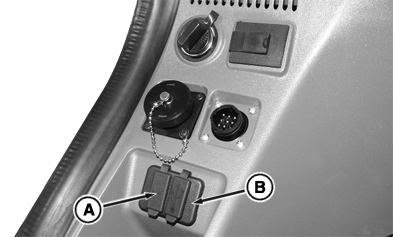
External audio sources can be connected using convenience port located on right-hand console/storage tray. Sources can also be connected using Bluetooth® functions. Use ports to charge certain external audio sources. Examples of external audio sources include portable CD player, MiniDisc player, or MP3 player.
Charging some external audio sources, such as smart phones and tablets, via audio USB port is not supported. Attempting to charge device that is not supported may shut off USB port. Device must be removed and cycle radio power to recover.
Activate AUX Input
External audio source can only be selected if audio device is connected to external AUX input.
RXA0143013-UN-03JUL14
Auxiliary and USB Input
Connect external audio source using Auxiliary Input (A) and press SRC button several times until AUX is displayed on radio.Activate USB Input
USB audio source can only be selected if USB device is connected to external USB input.
Connect USB audio source using USB Input (B) and press SRC button several times until USB is displayed on radio.
Adjust AUX Input Volume
Volume for connected external audio source can be adjusted using radio volume knob after input is selected as audio source using SRC button.
- Press SRC button several times until installed audio source is displayed.
- Press MENU button. GAIN and current setting is displayed.
- Turn volume control knob counterclockwise or clockwise to adjust value from -9 to +9.
- Press the MENU button several times to exit the menu.
Set Up Bluetooth®
Following steps must be performed before Bluetooth® can be used:
Bluetooth® connection only relevant to devices/external audio sources which are Bluetooth® enabled.
While pairing Bluetooth® device to radio, pairing process cancels if changes are made to radio (ex: changing source or frequency).
- Enable Bluetooth® on device.
- Press MENU button, on radio faceplate until BT MODE displays.
- Wait 2 seconds until BT ON or BT OFF. Turn volume control knob clockwise or counterclockwise to turn Bluetooth® on or off. Display window may take up to 5 seconds to change.
- Press MENU button until display shows CON-TYPE. Select connection type phone/audio (default).
- To pair device, press MENU button until BT Pair displays.
- Enter pin provided into device.
Pairing process may take up to 5 minutes to complete. Bluetooth® symbol flashes while pairing takes place. When device/external audio source is successfully paired, phone calls and audio streaming can be received and placed via radio system. Device information (contact information, call history, music, etc) does not transfer to CommandCenter™.
For further instructions on how to pair device/external audio source, select source for connection, and transfer data, see Pair Bluetooth® Device to Generation 4 CommandCenter™ in this section of this Operator’s Manual.
|
Bluetooth is a trademark of Bluetooth SIG CommandCenter is a trademark of Deere & Company |
KT81203,00004C8-19-20170731 |