Product Features
Power Up
The HelmView display
is most frequently installed with power connected to the ignition.
When the ignition is turned on, the HelmView display powers up and
the engine health statistics can be viewed via preset gauges. To see
more gauge screens, press the Next or Prev buttons.
Main Menu
The main menu is
activated at any time by pressing the Menu key on the display.
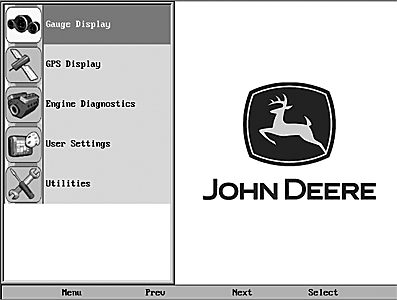
RG17602-UN-08SEP09
The following features are accessed through the main menu:
- Gauge Display – provides a series of screens that display engine and auxiliary information in a variety of formats.
- Engine Diagnostics – displays a list of engine fault codes, descriptions, and on some engines corrective action will be shown.
- User Settings – allows you to customize the display options for ambient light and brightness, set US or metric units, specify the Home screen and screen setup status.
- Utilities – allows configuration of the unit including wire configuration, plug address, fault conversion, CAN data, and fault codes. Also displays software version information at the top of the page.
Gauge Display
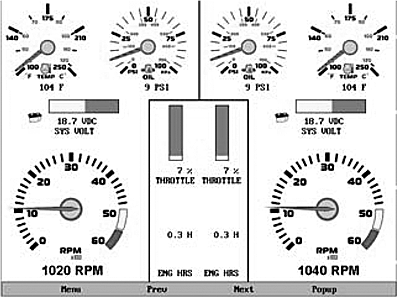
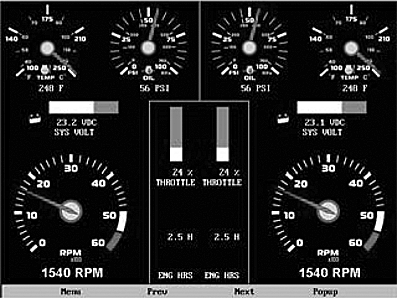
The Gauge Display
screen consists of several predefined layouts that contain combinations
of analog gauges, curved bar (half-moon) gauges, straight bar gauges,
or digital (text) readouts. These screens are displayed upon startup.
You can scroll through the various gauge screens by pressing the Next and Prev buttons.
This can be repeated until all screens have been viewed. The currently
displayed screen will stay active until another button is pressed.
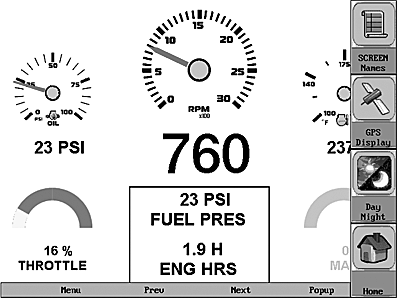
RG17608-UN-08SEP09
Gauge Display Popup
Pressing the Popup button on any of the Gauge Display screens will provide additional virtual buttons, as shown below.
These virtual buttons provide quick navigation and access to the following features:
- Screen Names
- Day/Night
- Home
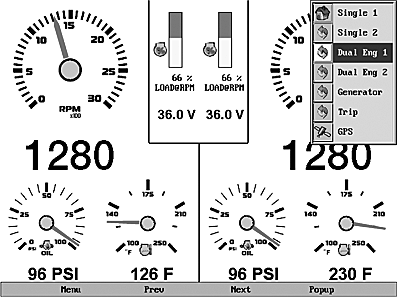
RG17609-UN-08SEP09
Screen Names - When selected, a small window appears at the top right of the display. This window contains the names of each of the screens that are currently “Turned ON”. Using the Prev and Next buttons allows you to scroll through and display the various gauge configurations.
NOTE: For instructions on how to turn screens ON or OFF, refer to the “User Settings” section.
RG17610-UN-08SEP09
Day View
RG17611-UN-08SEP09
Night View
Day Night - Allows you to toggle the display screen between Day View and Night View.
NOTE: This feature can also be changed in the “User Settings” section.
Home - This one-touch navigation feature allows a pre-defined Home screen to be accessed from the available Gauge Display screens. Once selected, the Home screen will be displayed anytime the Home button is pressed.
NOTE: For instructions on how to setup the Home screen, refer to the “User Settings” section.
RG17612-UN-08SEP09
RG17613-UN-08SEP09
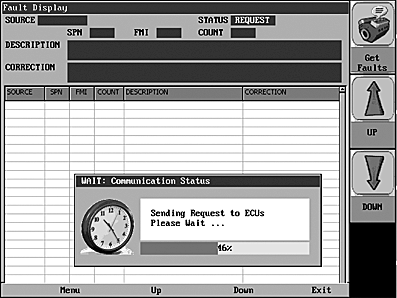
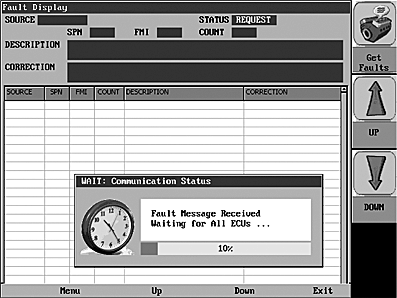
Engine Diagnostics
When choosing
this selection, the display will query the engine(s) ECU and provide
feedback on any diagnostic codes that have been activated and stored
in the ECU for service needs.
RG17614-UN-08SEP09
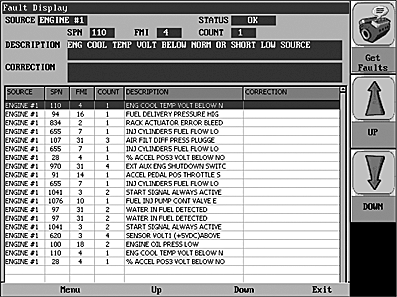
The Engine Diagnostics option displays faults based on engine or auxiliary source. A description of the fault as well as the suggested action for correction is provided for each fault occurrence.
The following is a list of field definitions contained on the ENGINE DIAGNOSTICS screen:
- Source – identifies the component having the fault; engine 1, 2, or auxiliary.
- Status – indicates whether the fault has been corrected.
- SPN –"Suspect Parameter Number" - fault code If not translated into text by the display, see the engine manufacturer's literature for the definition of the SPN number.
- FMI – “Failure Mode Indicator” - fault code The FMI is defined by SAE J1939. If not translated into text, see the SAE standard, or the engine manufacturer's literature.
- Count – The number of times the event has been flagged.
- Description – Most common SPN's and FMI's have text for the description stored in the display. If there is no text, then this SPN and FMI must be defined by referring to the engine manufacturer, or the SAE J1939 standard.
- Correction – Trouble-shooting guidelines for corrective action to take in addressing the fault.
RG17615-UN-08SEP09
Warning
RG17616-UN-08SEP09
Shutdown
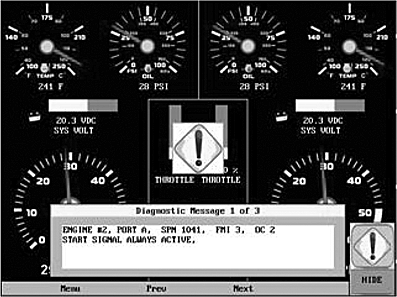
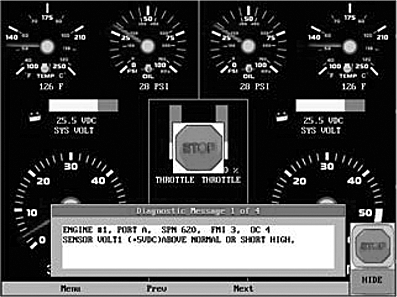
Fault Code Pop-ups
A fault
condition will trigger a pop-up dialog box on the screen describing
the nature of the fault. Corresponding red or amber fault lights on
the corners of the unit are also activated to indicate the severity
of the fault. The following screens are examples of warning and shutdown
fault code pop-ups.
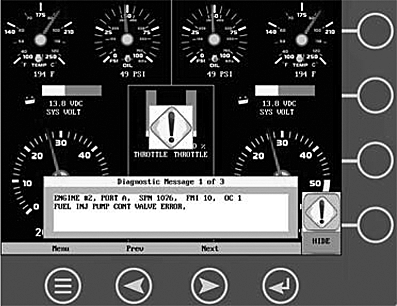
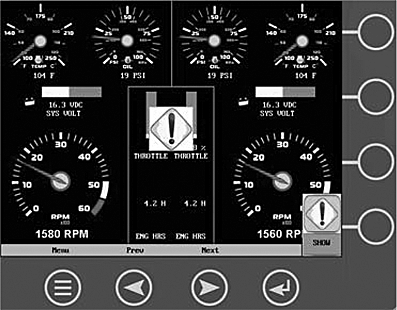
How to Hide/Show Faults
To
hide the fault code pop-up being displayed on the screen, press the
virtual button on the right next to the Hide icon. The pop-up will
disappear, however the “Warning” or “Stop”
icon will remain on the screen to indicate there is still a fault.
Pressing “Hide” does not clear the fault, it only hides
the pop-up message.
RG17617-UN-08SEP09
RG17618-UN-08SEP09
Scrolling Through Multiple Messages
The title-bar of the fault code pop-up may indicate
multiple messages, as in ‘Diagnostic Message 1 of 3’.
You may press the Prev and Next buttons to scroll through the different messages.
User Settings
RG17619-UN-08SEP09
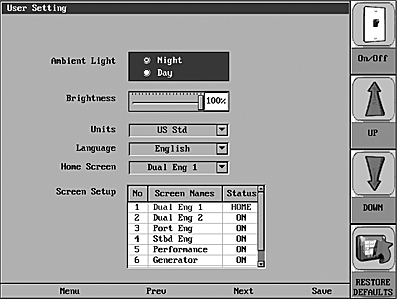
User Settings provides options to specify viewing preferences for the DISPLAY. Pressing Prev and Next navigates through the options, and Up and Down scrolls through the selections for each option.
Ambient Light
RG17611-UN-08SEP09
Night View
RG17610-UN-08SEP09
Day View
Night and Day options are provided for ambient lighting. The screens below illustrate these options. When the ambient lighting settings are changed in User Settings, the power-on default is changed.
NOTE: The ambient lighting option is also accessible through a pop-up menu on the gauge display screens. When the pop-up is activated, selecting the Day/Night virtual button changes the display to the opposite mode.
Units
Select how units are
displayed by using the UP and DOWN virtual buttons to select:
- US Std (US Standard)
- Metric KPa
- Metric Bar
- English Imp (English Imperial)
- Nautical
Language
This option allows
you to select the language that will be displayed on the HelmView.
As an example, by using the UP and DOWN virtual buttons, you may select English,
French, Italian, German, or Spanish to display the text.
Home Screen
The Home Screen
option allows you to specify a favorite screen from the Screen Names
list that can be used as a shortcut back to that screen. The Home
Screen will also be the first screen shown when Gauge Display is selected
from the User Setting menu. Use the UP and DOWN virtual buttons to scroll through the list
until the desired screen is listed. This will be the Home Screen.
Screen Setup
The Screen Setup
option provides a list of screens that may be shown when accessing
the Gauge Display screens. The ‘Status’ field will indicate
which screen has been specified as the HOME screen. It also provides
the user the ability to turn the screens ON or OFF by pressing the ON/OFF virtual button. If a screen is turned OFF,
it will not show up when Gauge Display is activated.
RG17605-UN-08SEP09
Utilities
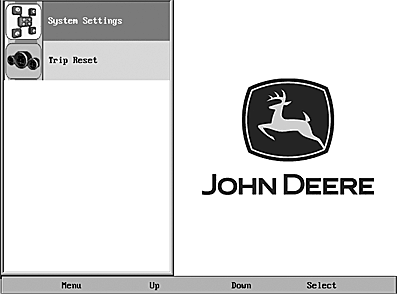
Utilities allow
you to reset external gauges and configure wiring and communication
settings. It is typically only accessed when the unit is first installed
in order to configure the unit. The following sub-menu is displayed
when Utilities is selected.
RG17621-UN-08SEP09
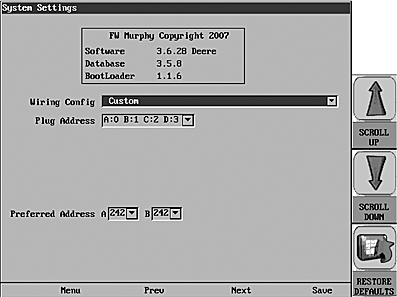
System Settings
The System
Settings screen displays the current software version loaded on the
HV1000 DISPLAY. You can set individual settings for the available
options, or choose to select “Restore Defaults” for the
factory settings.
NOTE: Refer to the section “Setting Up Your HV1000 Display for the First Time” for more information.
The Prev and Next buttons allow you to move from field to field. While the cursor is highlighting a field, the Scroll Up and Scroll Down buttons display available options. Once all the options have been selected, press Save.
NOTE: For guidelines to configure your display, refer to the “Setting Up your Display for the First Time” section.
RG17622-UN-08SEP09
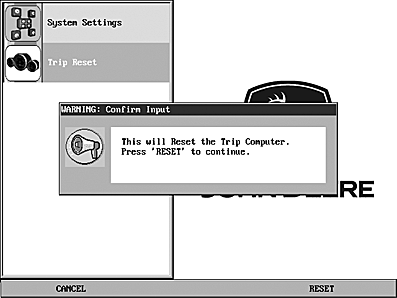
Trip Reset
This option resets
the trip computer and fuel economy calculations. A DST or GPS device
must be installed to receive speed data in order for the fuel economy
calculations to work.
|
JR74534,00002BE-19-20090914 |