Initial Settings for the JDLink Mobile Apps
-
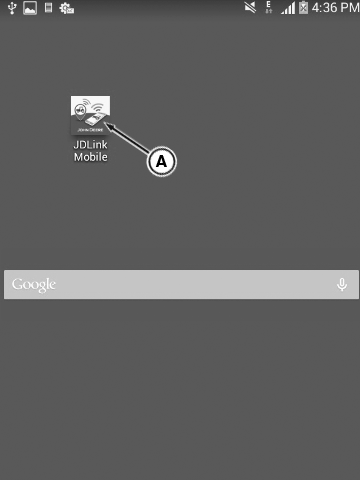
PY25061-UN-02MAR16A - JDLink Mobile App
Click the ‘JDLink Mobile’ app icon (A) on the mobile phone menu. -
After clicking the “JDLink Mobile” icon a splash screen appears along with John Deere logo for five seconds.
PY25062-UN-14OCT15 -
IMPORTANT: Read terms and conditions carefully and accept the terms and conditions by clicking on the check box.
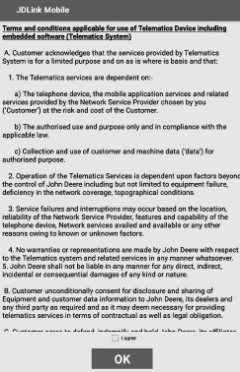
PY27553-UN-19FEB16License Screen
Splash screen traverses to the license screen to accept terms and conditions.NOTE: This is one time activity only, once accepting terms and conditions the licenses screens not display in future.
-
NOTE: If there is automatic date and time settings are already enabled in mobile settings screen, then message listed on the screen not enabling to set the date and time.
PY25063-UN-02MAR16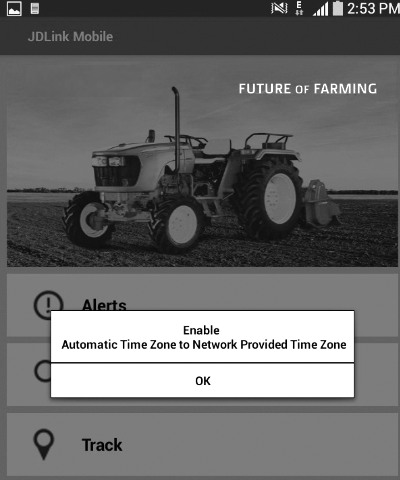
PY25064-UN-02MAR16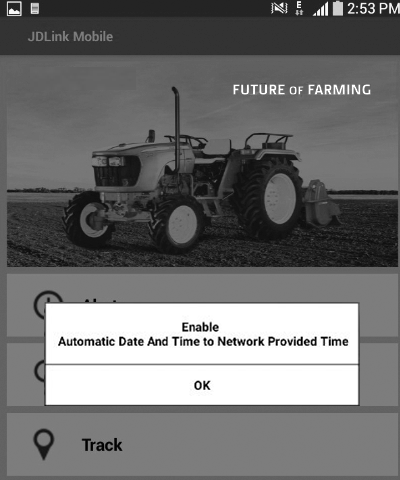
PY25065-UN-02MAR16A - Automatic Date and Time to Network Provided Time, Automatic Time Zone to Network Provided Time Zone
B - Automatic Time Zone to Network Provided Time Zone
C - Automatic Date and Time to Network Provided Time
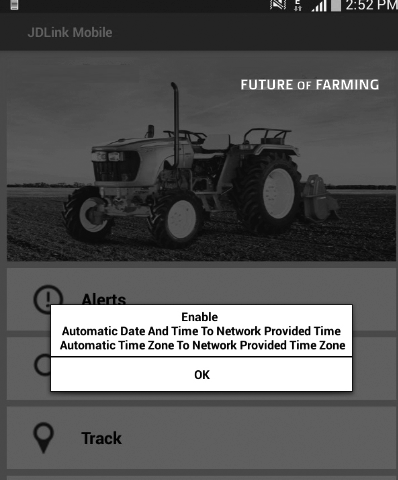
The app checks date and time settings are already done or not. If not done then pop up prompting to enable automatic date and time as shown. -
By clicking OK app navigate to the mobile setting screen, enable the automatic time zone and automatic date and time settings.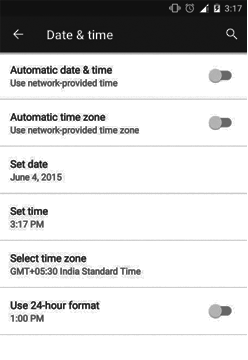
PY25066-UN-18JUN15 -
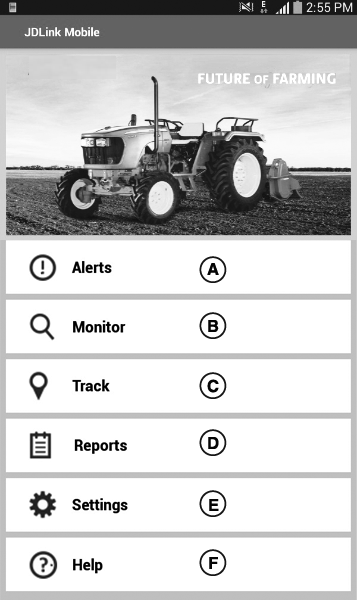
PY25067-UN-02MAR16A - Alerts
B - Monitor
C - Track
D - Reports
E - Settings
F - Help
press the back button to navigate to the main menu.
|
HK75640,000044A-19-20181009 |