Track Menu
IMPORTANT: Before entering into the track menu make sure that data connection is enabled.
NOTE: Track data can record into the app for seven days in case data available for all seven days otherwise shows as ‘No Data Available’.
-
Clicking the track menu the application checks if data connection is enabled or not and it displays a pop with appropriate message to enable. Clicking ‘NO’ dismisses the pop-up and clicking ‘Enable’ traverses user to mobile setting screen to enable data connection.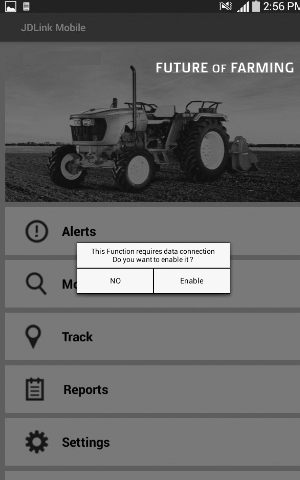
PY25089-UN-02MAR16 -
PY25091-UN-19JAN16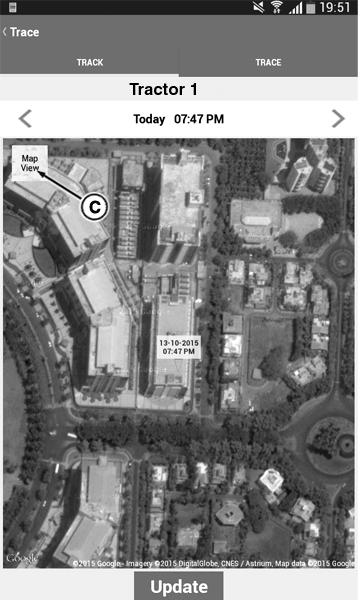
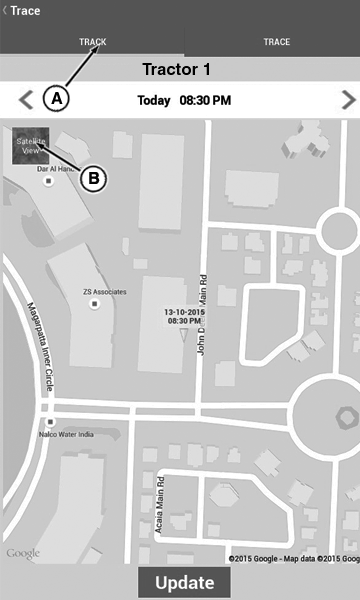
PY25093-UN-19JAN16A - Track Button
B - Satellite View Button
C - Map View Butto
Click the track button (A). -
Click the button (B) to activate the satellite view and click on button (C) to activate the map view.
NOTE: Map view always default view when open the track.
-
Clicking ’update’ sends request for location information of the machine.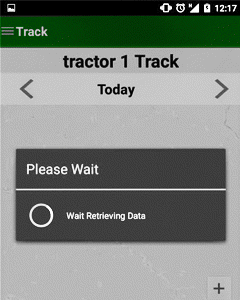
PY25094-UN-15MAR24 -
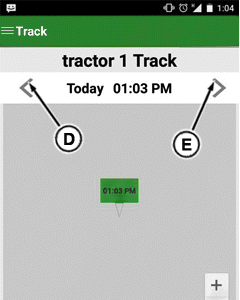
PY25096-UN-15MAR24D - Backward Arrow Button
E - Forward Arrow Button
If the location information is received within time-out then it displays location in the map with red marker inclusive of time stamp. -
Too see the previous locations for the day use backward button (D) and forward button (E).
-
Response is not received with in time out period, Then message indicating 'tractor is switched off or out of coverage area try again' is shown.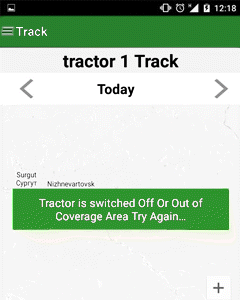
PY25095-UN-15MAR24 -
PY25097-UN-04NOV15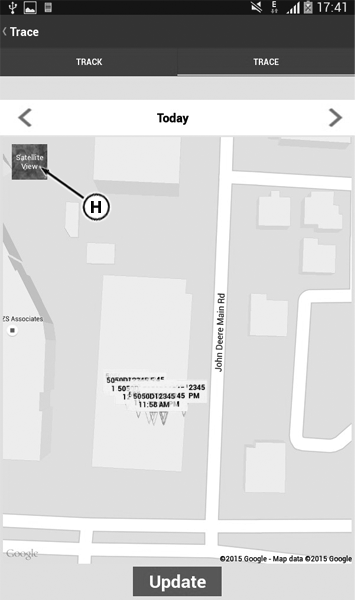
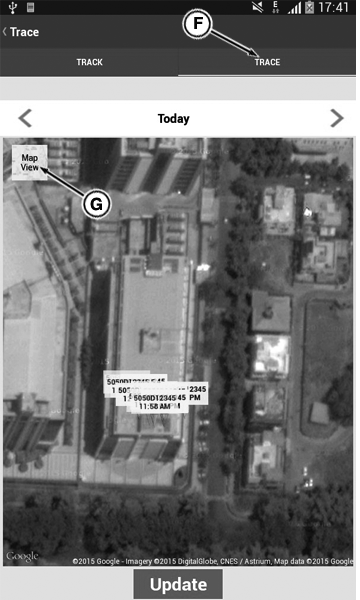
PY25099-UN-04NOV15F - Trace Button
G - Map View
H - Satellite View
Click the trace button (F). -
Click the button (G) to activate the map view and click on button (C) to activate the satellite view.
-
Clicking ’update’ sends request for location information of the machine.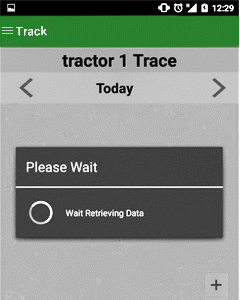
PY25100-UN-15MAR24 -
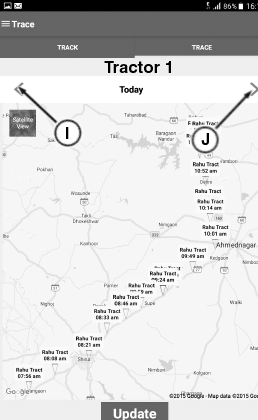
PY25102-UN-19FEB16I - Backward Arrow Button
J - Forward Arrow Button
If the location information is received within time out then it displays in the map with red marker as shown as well as showing the locations on Google map. -
Press the backward button (I) and forward button (J) for checking the data up to seven days.
-
Pressing fleet button displays location of all machines together in the map for track and trace options. Track and trace for fleet also work in the same way as for individual machines.
IMPORTANT: If there are more than one machine one can do track and trace for the entire fleet as done for single machine, by selecting the fleet button from the navigation drawer.
-
Response is not received with in time out period, Then message indicating 'tractor is switched off or out of coverage area try again' is shown.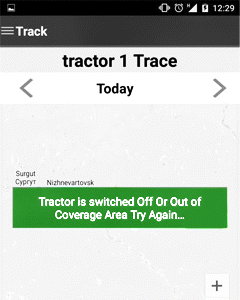
PY25101-UN-15MAR24 -
Press the back button twice for entering into the track menu screen.
|
HK75640,0000450-19-20181009 |