Information Display (Roll Mode Switch) — If Equipped
PY18492-UN-22AUG14
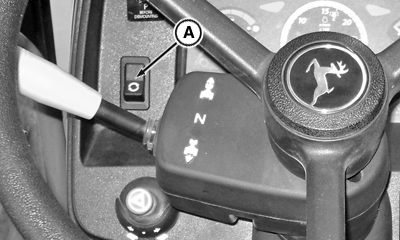
Roll Mode Switch Cab shown
PY18425-UN-11JUN14
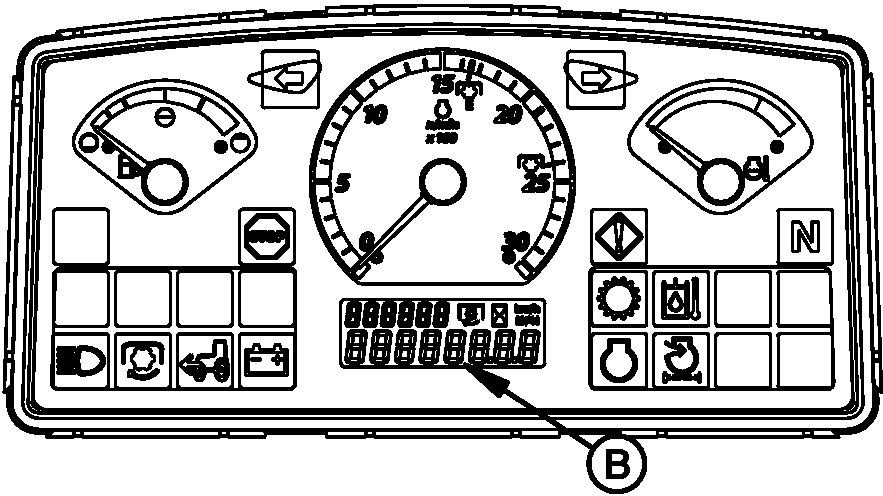
Instrument Panel
A - Roll Mode Switch
B - Instrument Panel
Roll mode switch (A) controls two different information display modes, “Normal” and “Diagnostic”.
Information Display - Normal Mode
Roll mode switch (A) and information display (B) default to the normal mode. In normal mode: Information display (B) provides a numeric representation of engine hours, vehicle speed, or PTO speed.
-
Press and release the roll mode switch (A) to cycle through
the information display (B) values (engine hours, vehicle speed, and
PTO speed).
Roll Mode Sequence Order
Engine Hours
Vehicle Speed1
PTO Speed1
- Engine hours are displayed when the key switch is first turned on.
- Engine hours are displayed for at least 7 seconds before automatically switching to any other value.
- Display (B) automatically transitions to the vehicle speed when the tractor begins moving.
- Display (B) automatically transitions to PTO speed when the PTO is engaged.
- Display (B) disables automatic scrolling once roll mode switch (A) is pressed or used to scroll through display modes.
- PTO speed is only displayed, when the enable PTO speed display is configured in ICC diagnostic address 026 (1 = enabled) (If vehicle is equipped with electrohydraulic PTO.)
- The display (B) only re-enables automatic scrolling when the key switch is cycled on and off.
Information Display – Diagnostic Mode
The diagnostic mode has two levels of access; “Customer” and “Technician”.
- Customer access — Press and hold roll mode switch for 5 seconds to begin diagnostic session. This action allows access to see diagnostic trouble codes and a limited amount of diagnostic addresses.
- Technician access — Only for John Deere dealer use. Accesses everything in customer mode plus vehicle set up, configuration, and calibration.
Customer access; recall, record, and clear diagnostic trouble codes:
- Press and hold the roll mode switch for 5 seconds to begin diagnostic session.
- Upon entering diagnostics, any active or previously active codes automatically appear in a scrolling fashion with each one showing the control unit (3 letter abbreviation) and the code number (XXXXXX.XX).
- To view and/or clear diagnostic trouble codes for any given control unit, do the following:
- Use the right turn signal switch to scroll to the desired control unit.
- Press and release the roll mode switch to enter the diagnostic addresses for that desired control unit.
- Use the right turn signal switch to scroll to diagnostic address 001 for that desired control unit.
- If codes are present the word "codes" appears. If not, the word "none" appears.
- Press and release the roll mode switch to view all code details for this control unit.
- Any codes present in that control unit appears there in scrolling fashion for multiple codes.
- To access the option for clearing codes for this selected control unit, press and release the right turn signal switch.
- The question "CLR ?" appears.
- To clear the codes, press and release the roll mode switch.
- To go back to the entire control unit list, press and release the left turn signal switch.
- Proceed to the next desired control unit by repeating steps 1-10.
|
1 If Equipped.
|
SD74272,000009B-19-20140721 |