Operating Satellite Ready Premium Radio with Compact Disc (CD) Player (If Equipped)
LV14597-UN-10AUG11
Radio
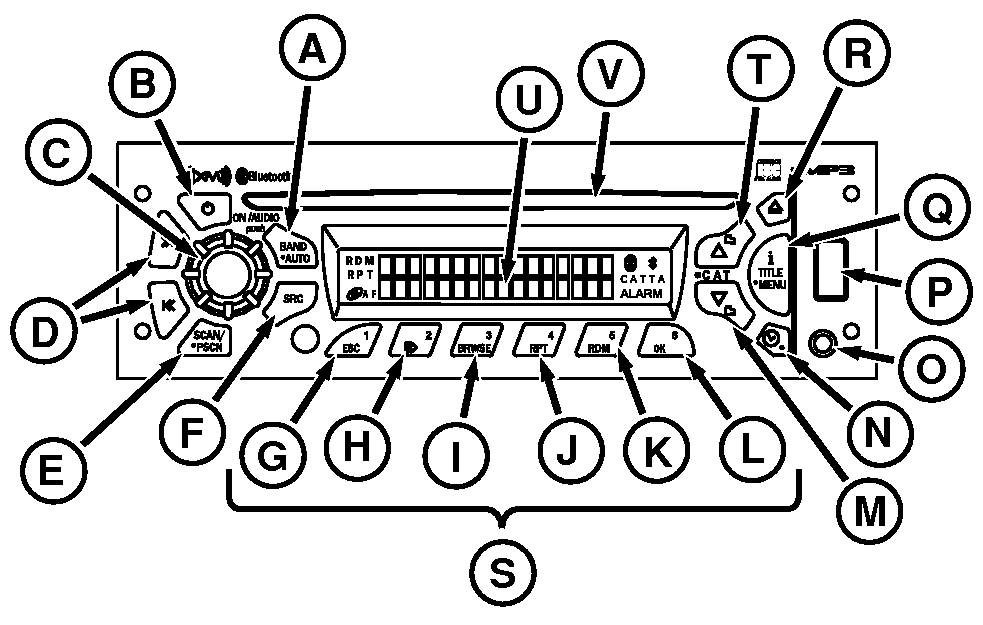
A - Band/Auto Button
B - Power
C - Audio Knob
D - Seek Buttons
E - SCAN/PSCN
F - SRC (Source)
G - ESC
H - Pause/Play CD
I - Browse
J - RPT
K - RDM
L - OK
M - Down Button
N - Clock/Alarm
O - Auxiliary Input
P - USB Port
Q - i Title Menu
R - Eject
S - Programmable Stations 1—6
T - Up Button
U - Display
V - CD Slot
General Radio FunctionsPremium radio is equipped with:
- An AM band with 6 AM presets
- Two FM bands with a total of 12 FM presets
- Three satellite bands with a total of 18 satellite presets
- One weather band with 6 WX presets
Radio can be operated in any one of three modes:
- Radio ON with tractor running.
- Radio ON with tractor not running, but tractor ignition ON.
- With tractor ignition OFF, press radio Power button. Radio will play for one hour, then shut off automatically.
Adjusting the Volume
To increase volume, rotate Audio knob (C) clockwise. To decrease volume, rotate knob counterclockwise.
One-Hour Timer
With ignition off, press Power button (B) or Audio knob (C) to activate radio’s one-hour timer. Radio turns off after one hour. Press Power button (B) or Audio knob (C) again to reactivate one-hour timer.
Display
Radio displays time when off.
BAND/AUTO: Press BAND/AUTO Button (A) to switch between FM1, FM2, AM, SAT1, SAT2, SAT3, and WX.
SEEK: Press Seek (D) (>> or << ) to switch radio to next higher/lower frequency.
Audio mutes during Seek Up/Down process. Select either >> or << button while radio searches for signal. Tuner stops at frequency tuned. Seek mode ends when tunable station is found or Seek is canceled. Radio returns to original station if Seek is canceled. If no station is found, Seek continues searching until canceled.
To cancel Seek:
- Switch modes.
- Change bands.
- Press SCAN/PSCAN button.
- Press any preset button.
- Press and hold BAND/AUTO button.
- Turn off power..
NOTE: Quickly pressing Seek button causes radio to “tune” or search for the next higher or lower frequency and radio will stop on that frequency even if no station is there. Holding Seek Button longer than half a second initiates the “seek” function. The “seek” function stops at the next higher/lower frequency with a strong radio signal and will stop at that station. For example, changing from 107.1 to 107.3 by selecting the ip button (T) or changing from 107.3 to 107.1 by selecting the down button (M).
AUTO STORE
Auto Store temporarily stores the six strongest stations on
push buttons 1—6 (S). Press and hold BAND/AUTO button for more
than 2 seconds then an audible beep is heard and AUTOSTORE appears
on display. Press and hold BAND/AUTO button again to cancel AUTO
STORE after original presets are restored. AS is displayed while AUTO
STORE is active. Pressing BAND/AUTO Button while listening in one
radio mode will not affect presets in any other mode.
SCAN/PSCAN
Press SCAN/PSCAN button (E) to scan all stations on the current band. When a strong frequency is found, radio plays for 8 seconds before continuing to scan. To end scan, press SCAN/PSCAN again. Radio beeps, then displays SCAN plus the frequency currently tuned.
Press SCAN/PSCAN Button and hold for more than 2 seconds to scan current band preset stations. Radio plays selected station for 8 seconds and then continues scanning. PSCN appears on display along with frequency, preset number, and current band. Preset scan continues until SCAN/PSCAN is pressed again.
Storing Preset Stations
- Turn radio ON.
- Select band.
- Tune desired station..
- Press and hold desired preset buttons for more than 2 seconds (radio is muted).
- When station is set, an audible beep is heard.
- Repeat process for each of the remaining six preset station buttons.
Playing Preset Stations
Press appropriate button 1-6 (G through L).
Auxiliary Mode—Premium Radio
RXA0104593-UN-04SEP09
Radio
LV14527-UN-08SEP11
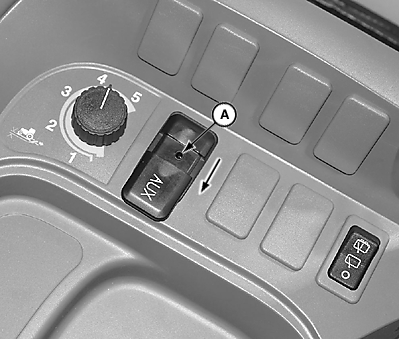
Rear Auxiliary Input
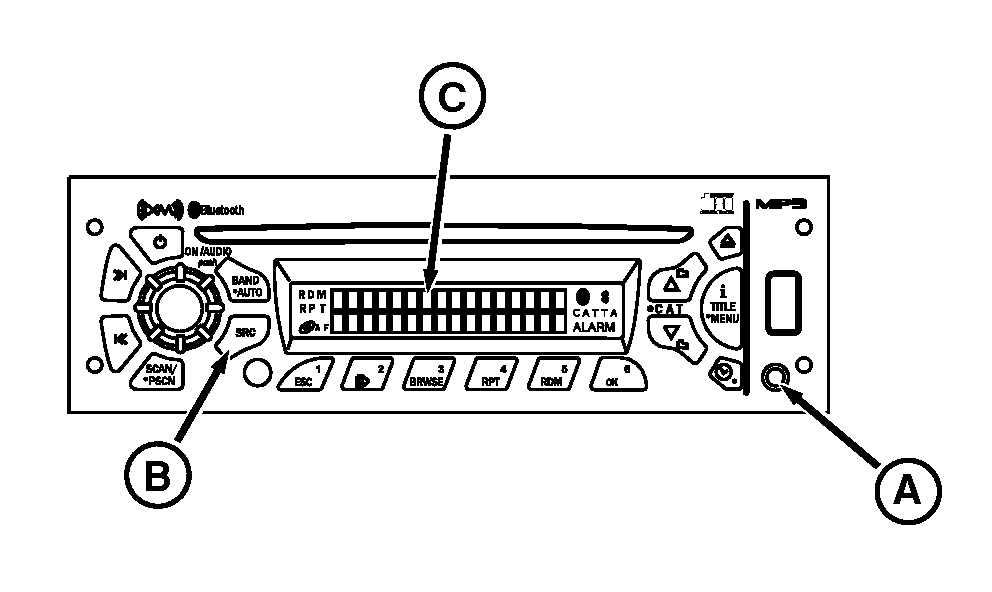
A - Auxiliary Input
B - SRC Button
C - Display
Front Auxiliary Mode
In Front Aux Mode, play external audio devices connected via auxiliary input port (A). Front auxiliary mode is not an option until device is connected to auxiliary input port.
Rear Auxiliary Mode
NOTE: Rear auxiliary input port is located on the right console. Slide cover rearward to access port.
To use audio device connected via rear auxiliary input port, press SRC (B) button until radio display (C) shows “REAR AUX” and turn device on.
|
JZ81662,00009E5-19-20120328 |