Setting up Hands Free (Bluetooth) Mode—Premium Radio
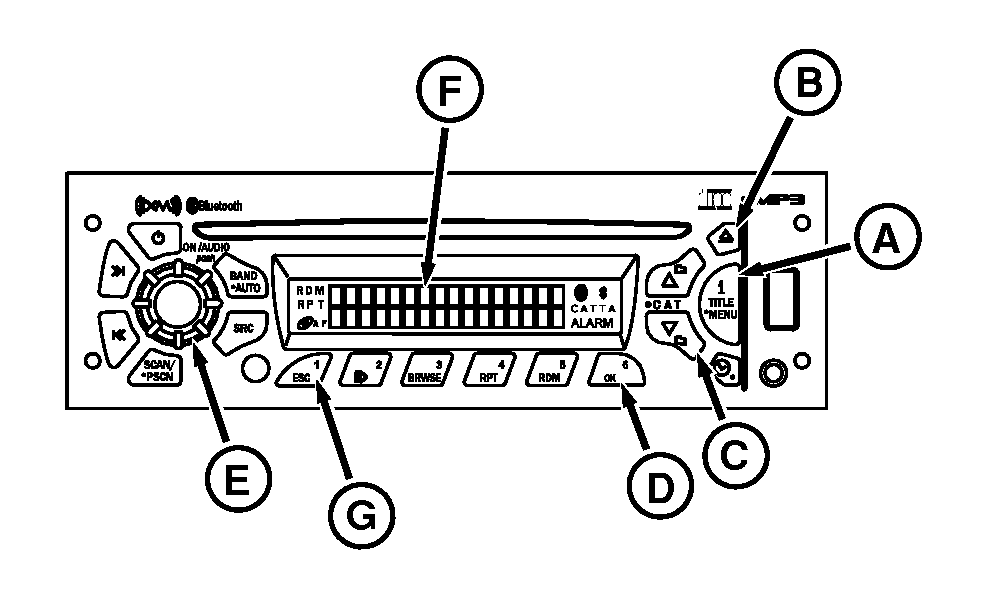
RXA0102670-UN-06MAY09
Setting Up Bluetooth Mode
A - i Title Menu Button
B - Up Button
C - Down Button
D - OK Button
E - Audio Knob
F - Display
G - ESC Button
Premium Radio has hands free capabilities through Bluetooth® technology. Up to 16 mobile phones can be saved to Premium Radio at one time.NOTE: Ensure device being paired is Bluetooth capable and has been enabled.
-
Turn radio ON.
-
Press and hold i Title Menu button (A) until audible beep sounds. Audio knob (E) can also be used as an OK button.
-
Rotate Audio knob (E) or press up/down buttons (B and C).
-
When HANDS FREE appears on display (F), press OK button (D).
-
Rotate Audio knob or press up/down buttons and select ON.
-
Press OK button.
NOTE: Bluetooth Status icon should appear on radio display.
Add Phone
-
Rotate Audio knob or press up/down buttons.
-
Watch display and select ADD PHONE by pressing OK button.
NOTE: When ADDING PHONE appears on display, radio is scanning for Bluetooth devices. Ensure that paired Bluetooth device has been set to add a device and is searching for DEA355 Radio.
After 3 minutes, if no phone is added, radio displays NO PHONE FOUND.
-
ADDING PHONE will appear on radio display for 3 seconds, and Bluetooth® (icon) will blink up to 3 minutes.
-
Use PIN number 0000 to connect to radio.
NOTE: When mobile phone is successfully added to radio, PHONE CONNECTED will appear on display first line. Radio display second line will show Bluetooth phone name for 3 seconds.
If 16 have been stored, the ADD PHONE option is disabled until a phone is deleted.
After the initial pairing is completed, radio will automatically pair a cell phone when it comes within Bluetooth range.
NOTE: Edit Phone menu will be enabled when at least one cell phone is paired with the radio.
Edit Phone
-
Rotate Audio knob or press up/down buttons and when EDIT PHONE appears on display, press OK button.
-
The radio will display a list of mobile phones added.
-
To delete a mobile phone, rotate Audio knob or press up/down buttons to select desired mobile phone, then press OK button.
-
Phone is deleted, and radio display returns to previous menu display.
NOTE: Change Phone menu will be enabled when at least two cell phones are paired with the radio.
Change Phone
- Rotate Audio knob or press up/down buttons and when CHANGE PHONE appears on display, press OK button.
- The radio will display a list of mobile phones added.
- To change a mobile phone, rotate Audio knob or press up/down buttons to select desired mobile phone, then press OK button.
- Phone is selected, and radio display returns to previous menu display.
Answer Phone
-
To accept incoming call, press OK button.
-
To reject incoming call, press ESC button (G).
HANDSFREE (Bluetooth)
When a mobile phone has been previously paired with the radio and an incoming call is received, the radio will pause/mute and show on the display the phone name on the first line and the phone number on the second line. The << characters indicate incoming call. When a call is placed on the mobile phone, the radio will pause/mute and show on the display the phone name on the first line and the phone number on the second line. The >> characters indicate outgoing call.
Call Transfer
If a call is in progress, press the PAUSE/PLAY button to allow the system to transfer the call to the mobile phone. The radio will display CALL TRANSFERRED.
Phone Disconnection
If the mobile phone ends the Bluetooth connection with the radio, is turned off or when the phone signal gets out of range, the radio will display PHONE DISCONNECTED.
Phone Reconnection
If the mobile phone previously connected re-activates the connection with the radio, the mobile phone is turned on or the phone signal gets in range, the radio will display PHONE CONNECTED.
|
Bluetooth is a trademark of Bluetooth SIG |
JZ81662,00009EA-19-20120328 |