Using Instrument Cluster Controller Buttons
-
Turn the key switch to run position.
-
MXT019881-UN-17FEB17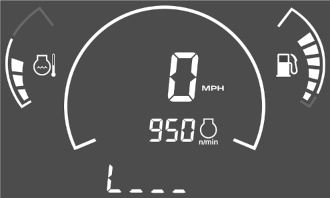
MXT020182-UN-15JUN17Display Brightness Screen
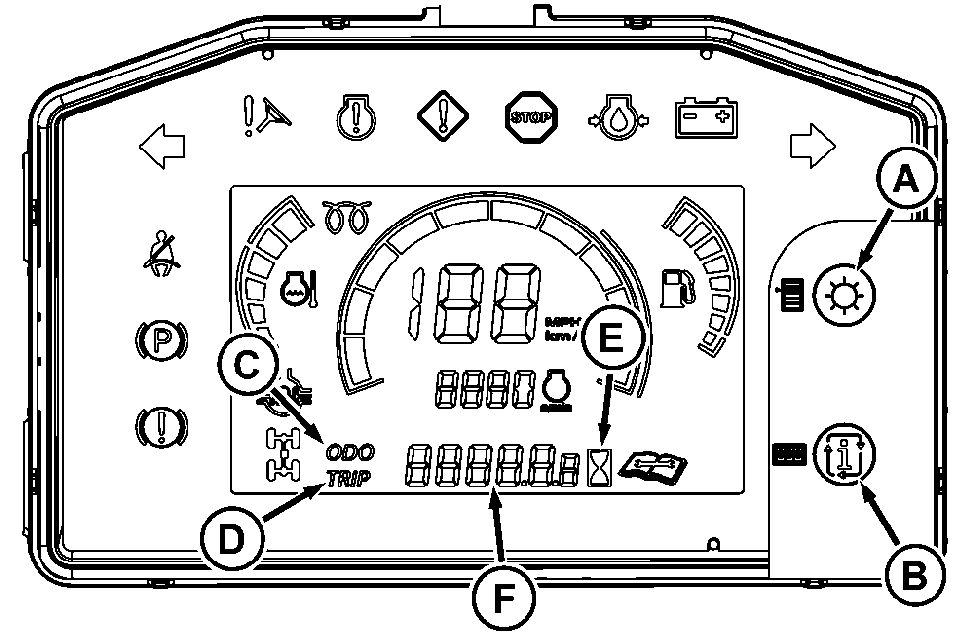
Adjust the display brightness by pressing the select button (A).
Odometer, Trip Meter, and Hour Meter
Toggle between odometer, trip meter, and hour meter Home screens by pressing the cycle button (B).
-
When “ODO” (C) is displayed, the odometer indicator (F) displays the number of miles or km the machine has moved. (To change between miles or km displayed, see System Settings Menu.)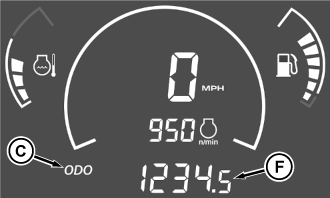
MXT020183-UN-15JUN17 -
When “TRIP” (D) is displayed, the indicator (F) displays the number of miles or km the machine has moved for a certain trip. (To change between miles or km displayed, see System Settings Menu.)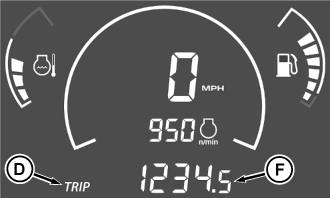
MXT020184-UN-15JUN17 -
When the hour meter (E) is illuminated, the indicator (F) displays the number of operating hours the engine has run.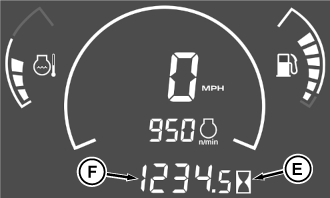
MXT020185-UN-15JUN17
System Settings Menu
To enter the System Settings Menu from the Home screen, press and hold the select button (A) for the required time. Pressing the cycle button (B) toggles through the Tire Size, Display Units, Speed Units, and two Diagnostic Trouble Codes (DTC) menus. (DTC menus are provided for diagnosing a machine malfunction. See your John Deere dealer for service.)
If vehicle speed is greater than 4.8 km/h (3 mph), no menu settings are allowed.
While in a main or sub menu item, if no button is pressed within the required time, the settings menu returns to the current Home screen. Press and hold the select button for the required time to get back to the settings menus.
Tire Size Selection Menu
MXT019883-UN-17FEB17
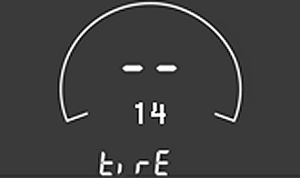
14 inch Tire Size Shown
This menu allows the operator to adjust for the tire sizes available. The current setting is displayed on the lower seven segment section when entering the option menu structure. To enter the tire size menus, press the select button (A). To toggle through and display the tire sizes, press the cycle button (B). The tire size value displayed flashes every 1 second. When the desired tire size is displayed, press the select button. The tire size remains solid on for 1 second, and then the display returns to the Main Menu for this setting.Display Units Selection Menu
MXT019884-UN-17FEB17
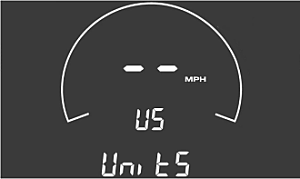
English Display Units Shown
This menu allows the operator to select either English or metric units when applicable. The current setting is displayed on the lower seven segment section when entering the option menu structure. To enter the display units menus, press the select button (A). To toggle between US/mph and SI/km/h, press the cycle button (B). The display unit text and icon flashes every 1 second. When the desired display unit is displayed, press the select button. The display unit text and icon remains solid on for 1 second, and then the display returns to the Main Menu for this setting.Engine RPM/Speedometer Gauge Selection Menu
MXT019885-UN-17FEB17
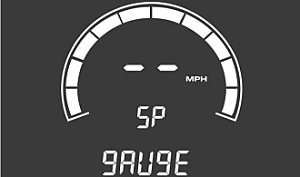
Vehicle Speed Option Shown
This menu allows the operator to change the center bar graph to show a graphical representation of either the vehicle speed or engine rpm. On the Home screen, an icon identifies which option is selected. The current setting is displayed on the lower seven segment section when entering the option menu structure. “CYC” identifies the gauge as being in the engine tachometer mode. The “SP” identifies the gauge as being in the vehicle speedometer mode. Both modes show a graphical approximation of the selected mode. To enter the engine rpm/speedometer menus, press the select button (A). To toggle between SP/mph and CYC/rpm, press the cycle button (B). The display unit text and icon flashes every 1 second. When the desired display unit is displayed, press the select button. The display unit text and icon remains solid on for 1 second, and then the display returns to the Main Menu for this setting.|
OUMX068,000129D-19-20170615 |