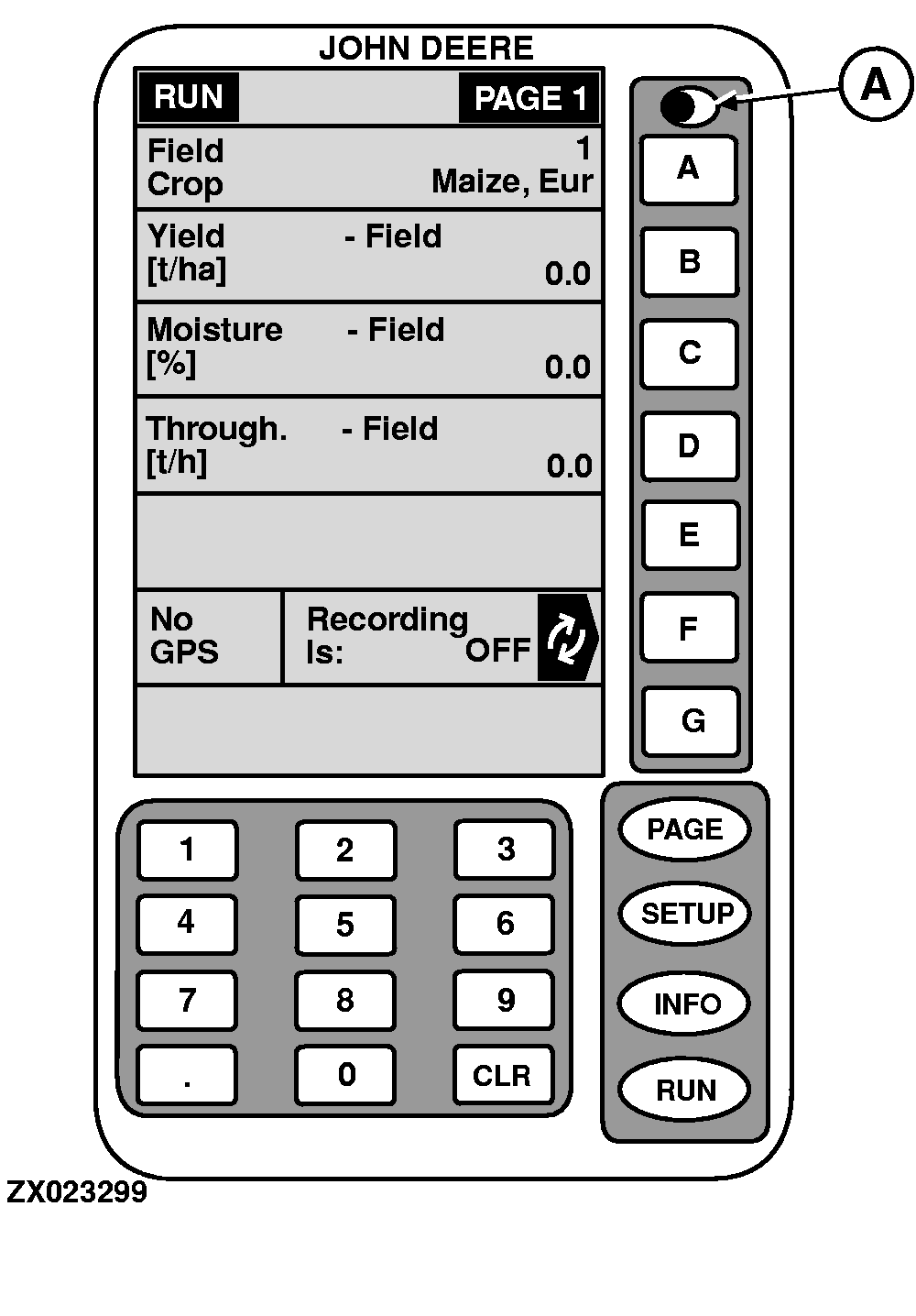
General InformationThe GreenStar Display is a multipurpose display with easy-to-use, menu-driven commands. It has a display area with several information display cells, seven alpha keys (A to G) located to the right of the display cells, a numeric keypad, a PAGE key and three mode select keys SETUP, INFO and RUN . A contrast button (A) is used to adjust the contrast level of the display for visibility and clarity. Adjust the contrast by pressing the contrast button (A) and holding until the desired contrast level is reached. To reverse the direction of contrast adjustment, press and hold the contrast button again. The back-lighting level may also be changed to increase the visibility of the screen (see "Yield Monitor Setup Functions" in this Section). An example of each GreenStar Display screen is shown on the following pages. Each screen contains many cells, and each cell displays a specific piece of information. NOTE: A customer defined layout of run pages is possible. BEFORE YOU START NOTE: There is NO Power On/Off switch for the display. Power is applied when the ignition is turned ON. At initial start-up the GreenStar Display will show the "RUN - PAGE 1" screen. To change the screen, press PAGE, SETUP or INFO. Each information display cell is either active or inactive. Active cells display information that can be changed, and are highlighted by a black arrow. Inactive cells just display information and cannot be changed. Pressing the alpha key to the right of an active cell results in one of the following:
NOTE: The software version of the display needs to be version PF303111D or higher. |
|
OUZXMAG,000083B -19-26SEP02-1/1 |