Run-Page 2

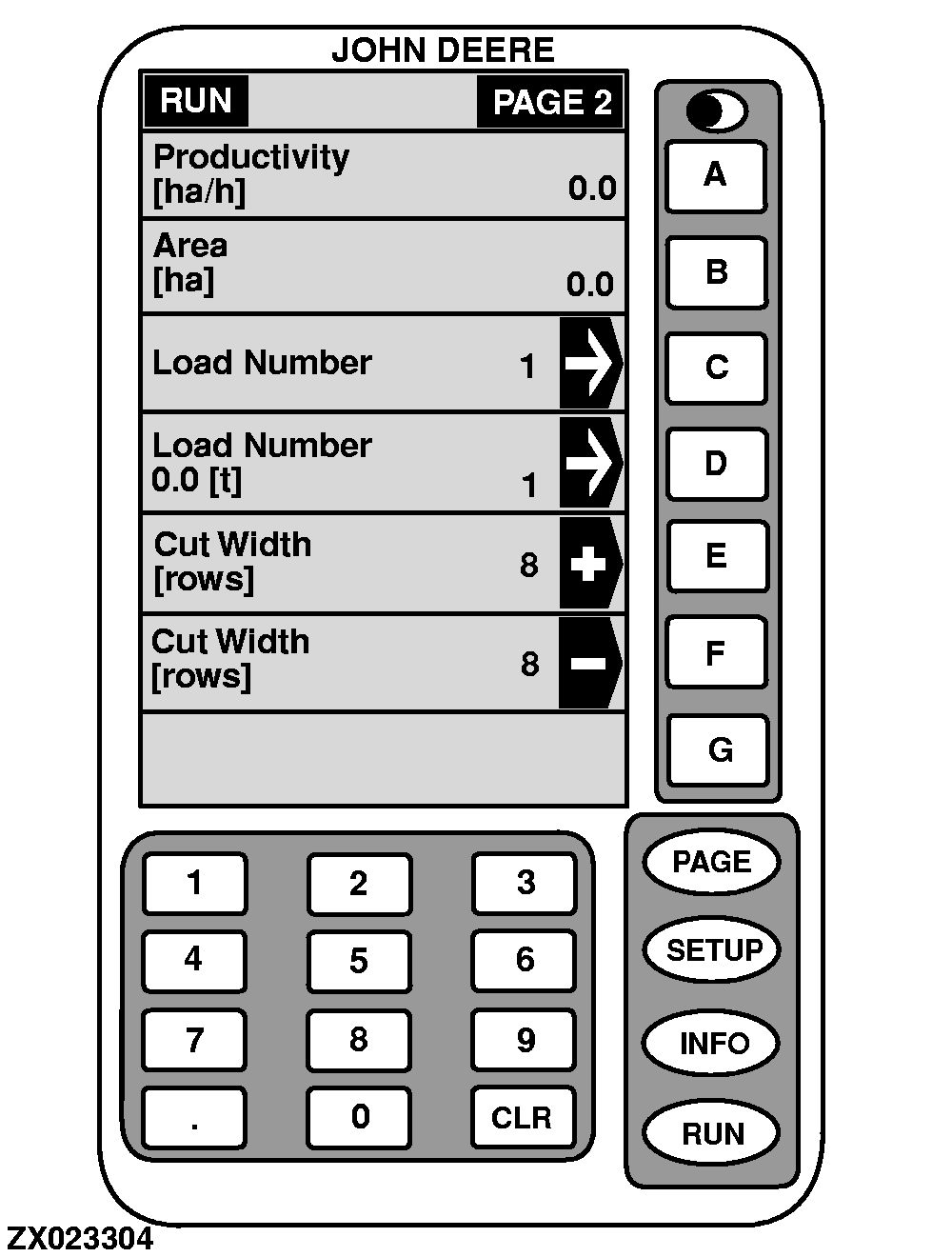
The "RUN - PAGE 2" screen displays the following information as factory default:

NOTE: While harvesting, it is recommended that the operator keeps a "key" of which field corresponds to which field name and keeps it in the forage harvester for reference.

  • PRODUCTIVITY

    Forage harvester harvest productivity (harvested area units per hour).

  • AREA

    Total field area harvested.

  • LOAD NUMBER

    The load number is intended to be used as a tool to sum up specific yield and operation data for truck loads e.g. the operator should start summing up the data for a specific time period by starting a new load number.

    NOTE: This function can be used to summarize totals for truck loads, parts of field, different operators,...

    The load number can also be selected under SETUP screens (see "SETUP-Operation Data" in this Section).

    For other load number functions on Run Page, see "SETUP-Run Page" in this Section.

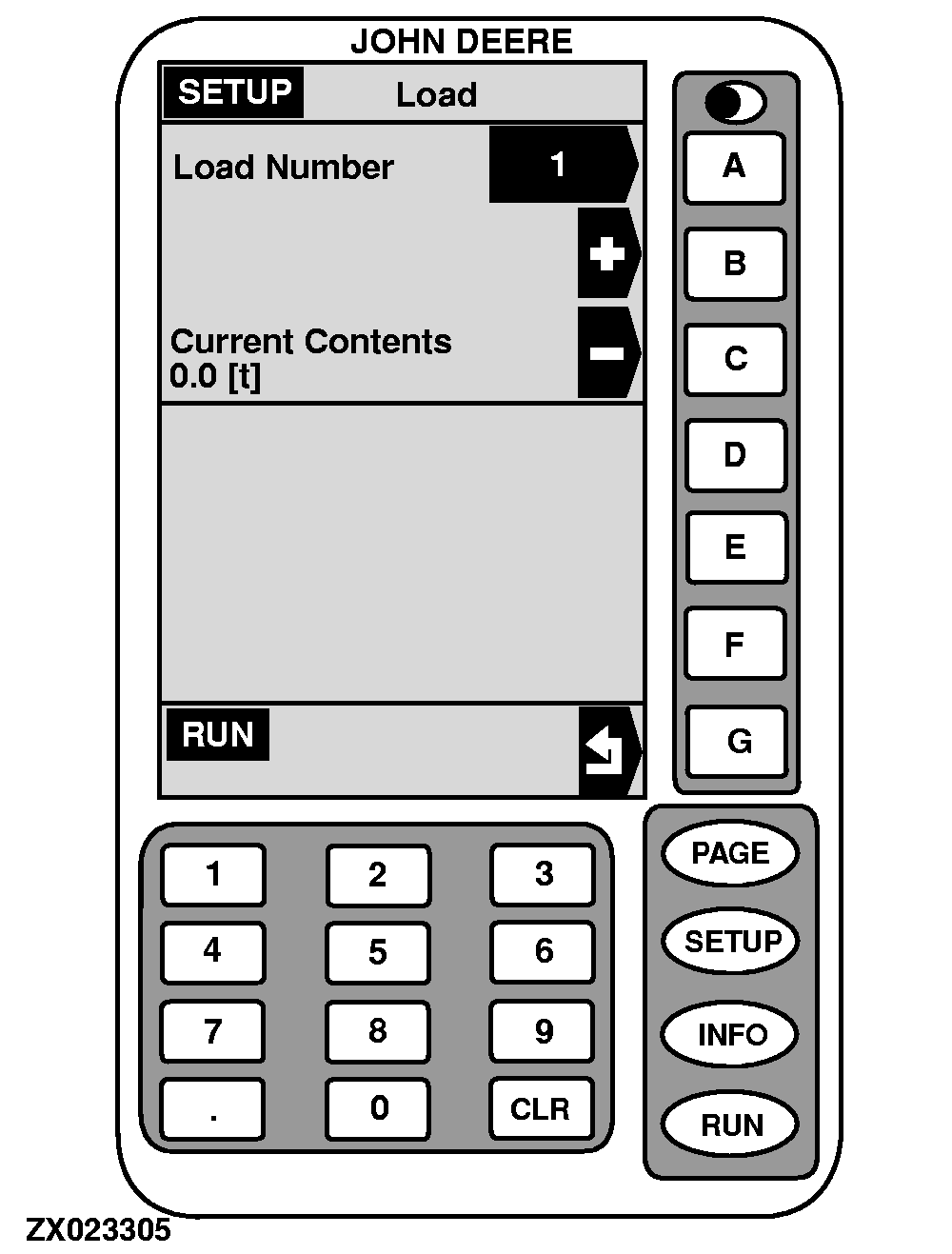
    To select load number, press key C on "RUN - Page 2". SETUP - Load screen will appear.

    Press key A to input load number using numeric keypad then press A again to ENTER the value.

    Press key B or C to increase or decrease load number directly.

    Press key G to go back to "RUN - PAGE 2" screen.

    ZX023304
    ZX023305

OUZXMAG,000083E -19-03JAN01-1/3


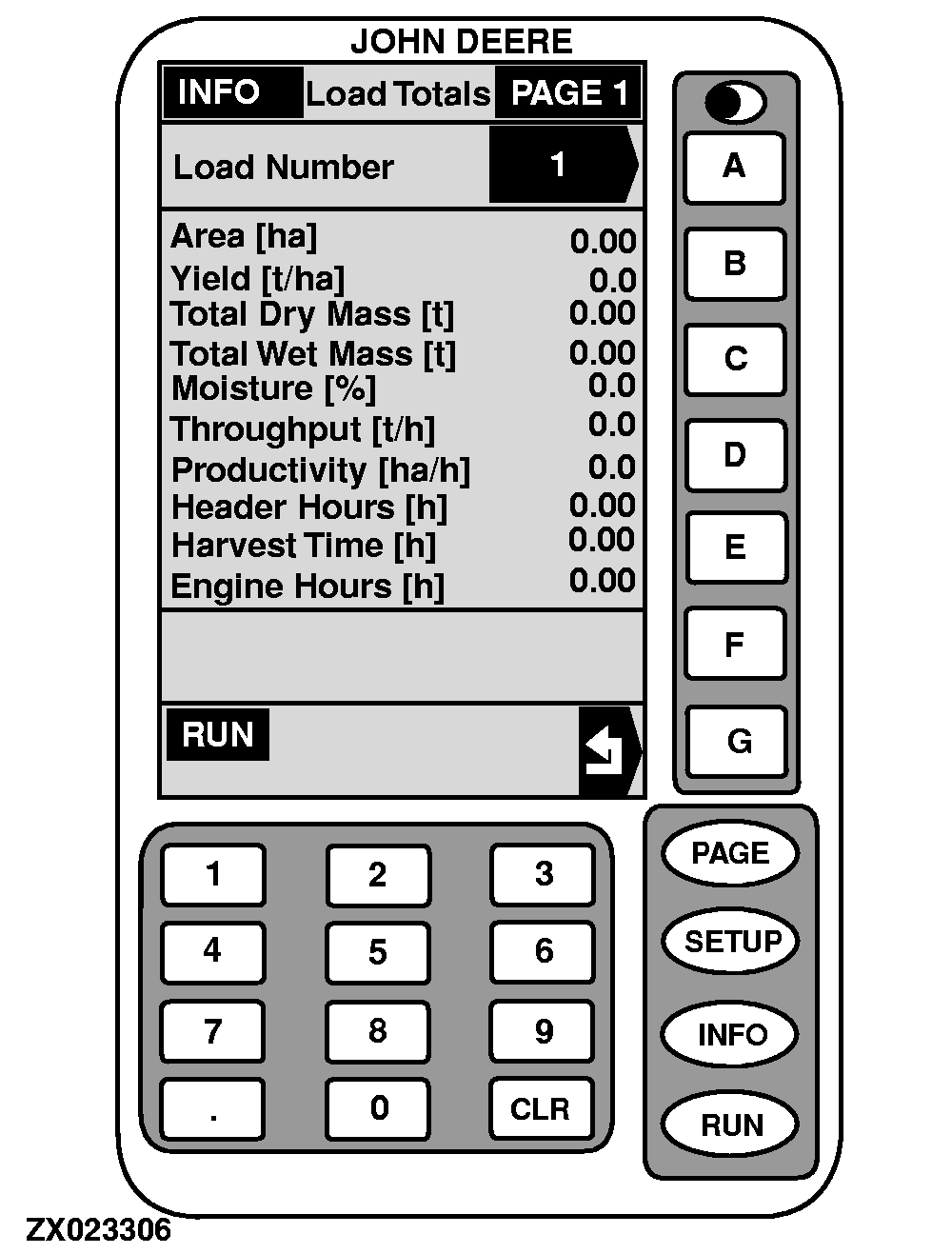
    To get information on displayed load number, press key D on "RUN - Page 2". INFO - Load Totals - PAGE 1 screen will appear.

    1.

    Press key A to input load number (using numeric keypad) on which information are requested.

    2.

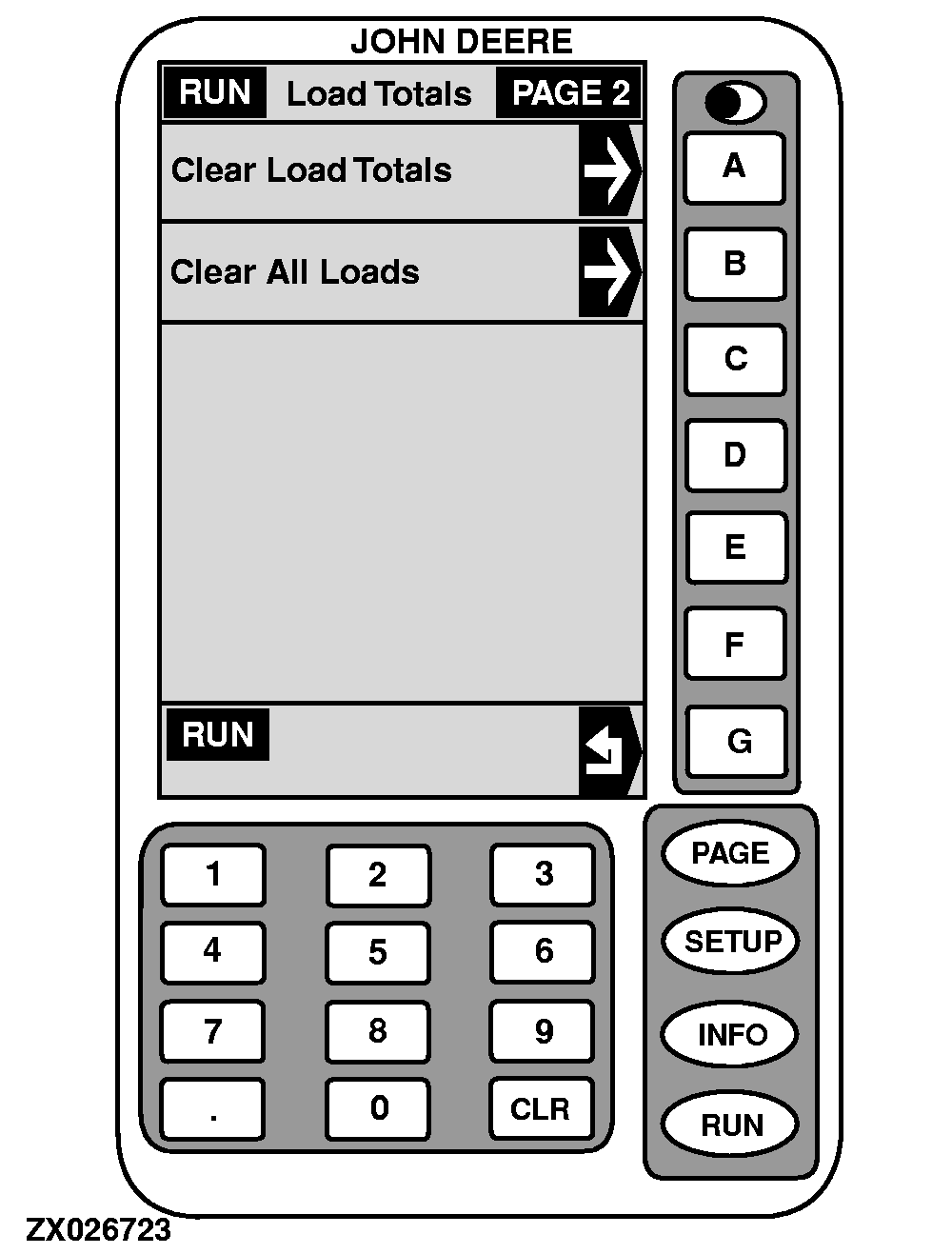
    Press PAGE key, INFO - Load Totals - PAGE 2 screen will appear.

    3.

    Press A to clear relevant load totals or press B to clear all load totals.

    IMPORTANT: This procedure will delete ALL information for this screen.

    4.

    Press key G to go back to "RUN-PAGE 2" screen.

    ZX023306
    ZX026723

OUZXMAG,000083E -19-03JAN01-2/3


      • CUT WIDTH (Reducing Working Width)

        Number of rows being harvested or width of cut. Header width is entered on "SETUP - Machine Data".

        NOTE: Cut width can be changed temporarily. When raising header, cut width will be reset to original setting.

        IMPORTANT: Make sure to enter correct header width.

        If single rows or less than full header width harvest is encountered, the actual number of rows or estimated cut width should be entered to accurately calculate yield/area data.

        To change cut width on display while harvesting:

        · Press key E to increase cut width.

        · Press key F to decrease cut width.

        NOTE: Depending on header type (Pickup Header, Row Crop Header), cut width will be displayed in rows or meters/foot (see "Yield Monitor Setup Functions" in this Section).

    ZX023304

OUZXMAG,000083E -19-03JAN01-3/3