Setup-Operation Data

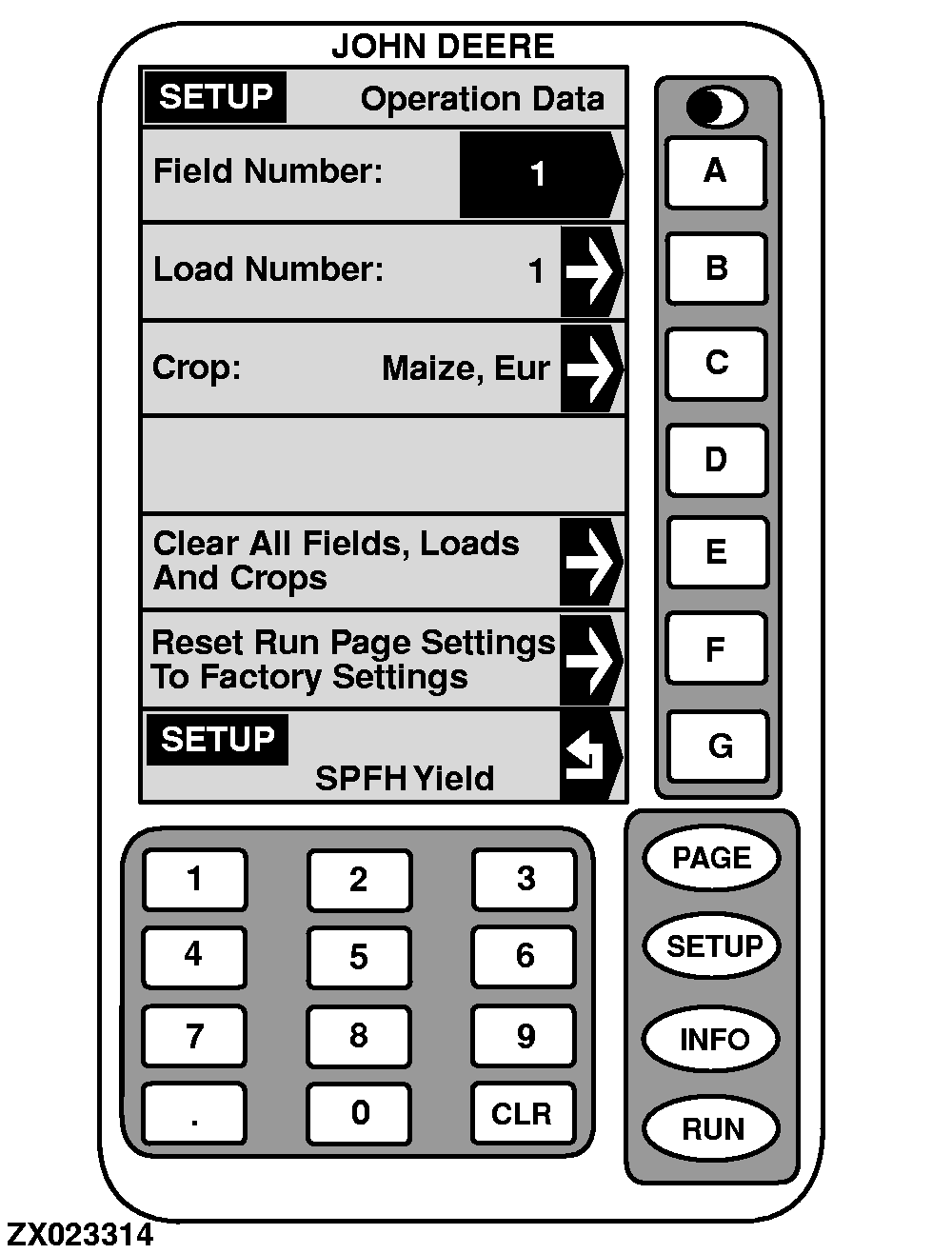
The "SETUP - Operation Data" screen is used to select parameters for the operation such as field number, load number or crop being harvested.

To return to "SETUP - SPFH Yield", press key G .

  • FIELD NUMBER

To select field number being harvested:

1. Press key A .

2. Using numeric keypad, input desired field number.

3. Press key A again to ENTER this value.

NOTE: The number of fields can be set from 1 to 200. Field Number-1 is set as factory default.


  • LOAD NUMBER

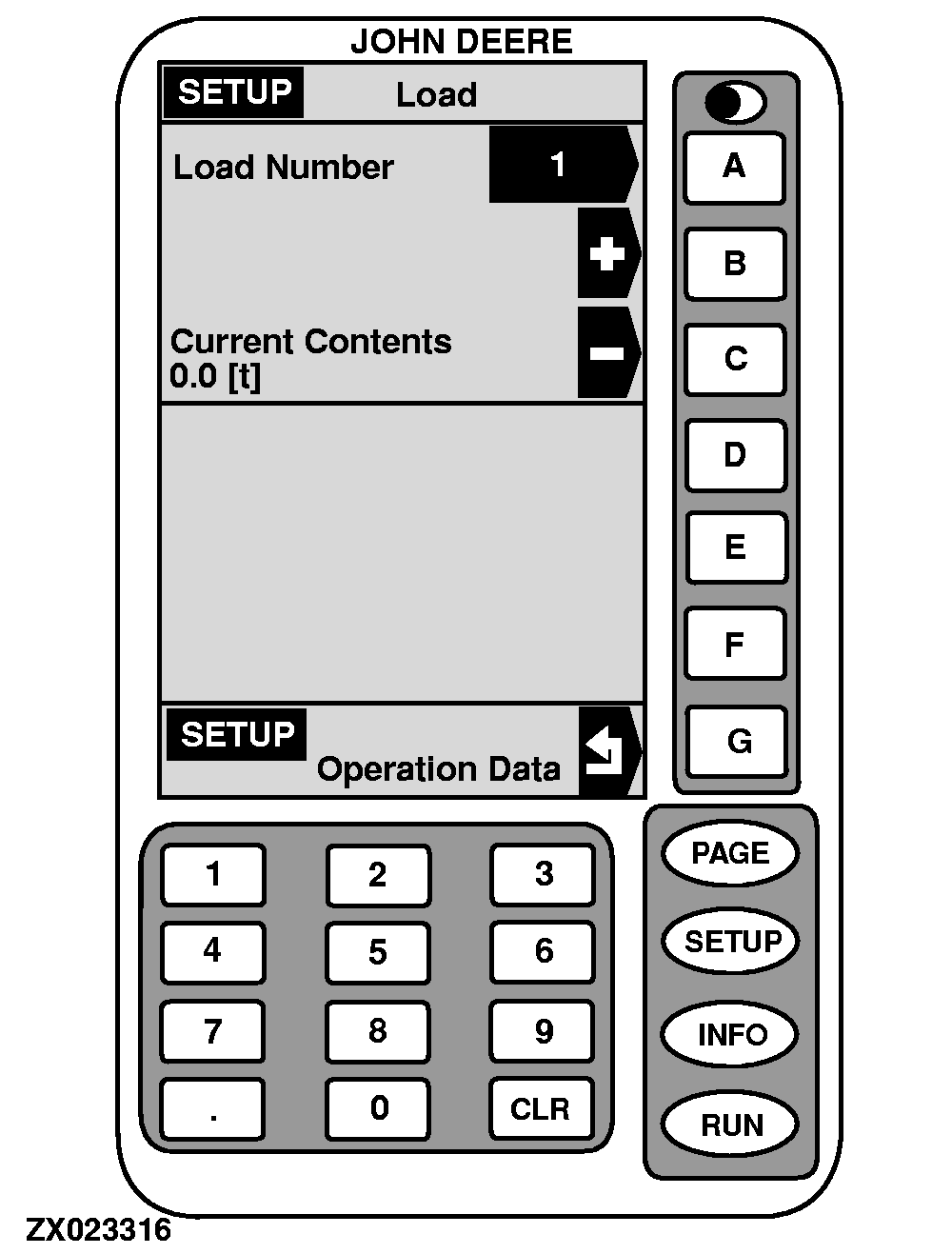
    The load number is intended to be used as a tool to sum up specific yield and operation data for truck loads e.g. the operator should start summing up the data for a specific time period by starting a new load number.

    NOTE: This function can be used to summarize totals for truck loads, parts of field, different operators,... Load Number-1 is set as factory default.

    To set up load number:

1. Press key B on "SETUP - Operation Data". SETUP - Load screen will appear.

2. Press key A to input load number using numeric keypad then press A again to ENTER the value.

3. Or, press key B / C to increase/decrease load number directly.

4. Press key G to go back to "SETUP - Operation Data" screen.

ZX023314
ZX023316

OUZXMAG,0000843 -19-05JAN01-1/5


NOTE: The number of the selected load can be set from 1 to 200.


    OUZXMAG,0000843 -19-05JAN01-2/5


    • CROP

      To select crop being harvested:

      NOTE: Crop-Maize (Eur) is set as factory default.

      1.

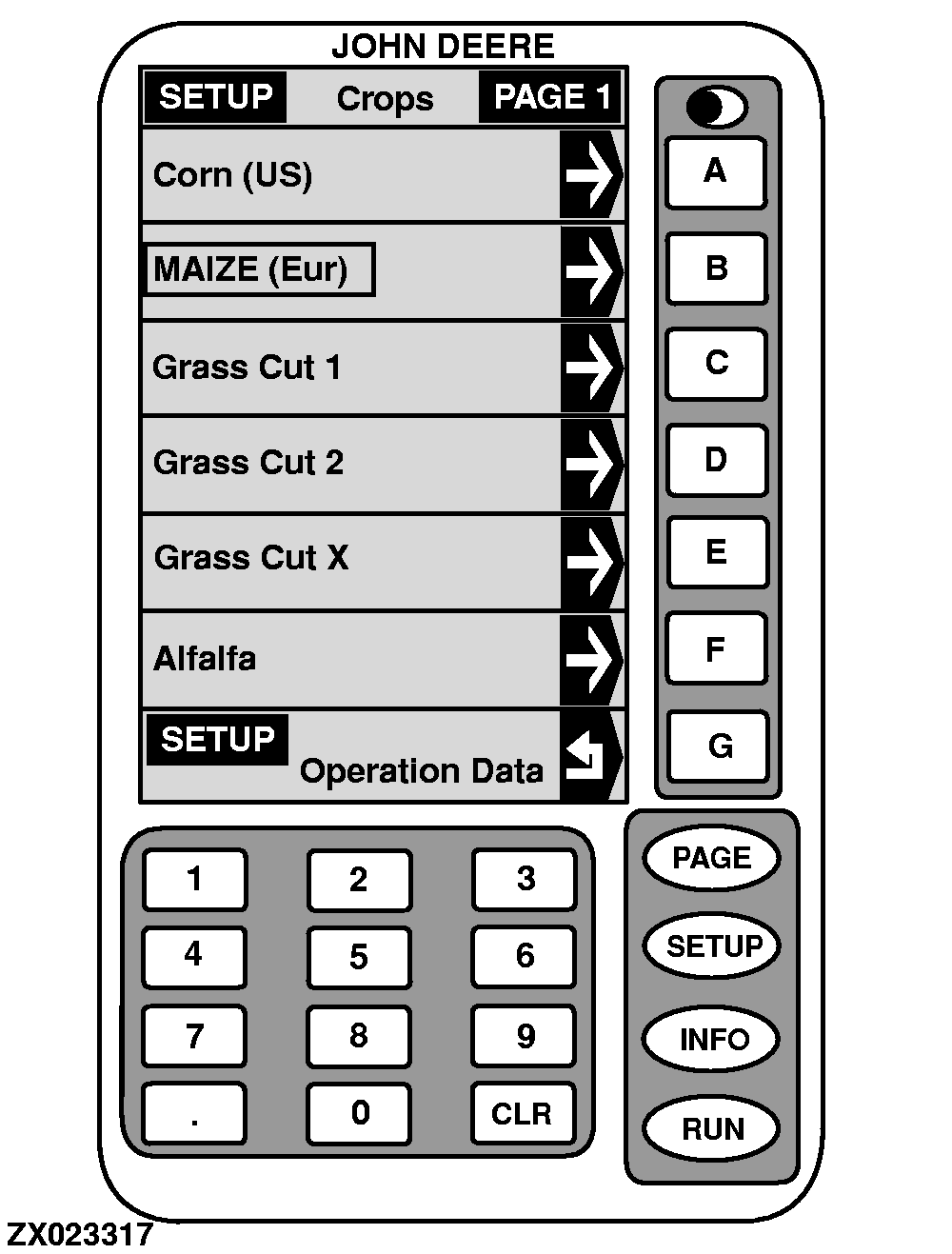
      Press key C on "SETUP - Operation Data". SETUP - Crop - PAGE 1 will appear.

      2.

      Press letter key next to crop desired. Crop selected is shown in a box as illustrated. This crop will be displayed on RUN - PAGE 1 .

      If desired crop is NOT displayed on current screen, press PAGE key until desired crop is shown and then make selection. No additional crops can be added. Following crops can be selected:

      NOTE: European specific crops are identified by a (Eur) suffix and crop types with (US) suffix are specific to the U.S. (North American) market. If the desired crop type is not available two entries in the list (Custom 1 and 2) can be customized.

      • From PAGE 1:
      • Corn (US)
      • Maize (Eur)
      • Grass Cut 1
      • Grass Cut 2
      • Grass Cut X
      • Alfalfa
      • From PAGE 2:
      • Wheat
      • Barley
      • Rye
      • Triticale
      • Maize Ears (Eur)
      • Earlage (US)
      • From PAGE 3:
      • Milo
      • Clover
      • Custom 1
      • Custom 2
      3.

      Press key G to go back to "SETUP - Operation Data" screen.

      ZX023314
      ZX023317

    OUZXMAG,0000843 -19-05JAN01-3/5


        • CLEAR ALL FIELDS, LOADS AND CROPS

          IMPORTANT: Clear all fields, loads and crops once a year before harvest. Current field and crop will remain the same.

          NOTE: Data being cleared is the cumulative Crop Totals and cumulative Field Totals displayed on INFO screens.

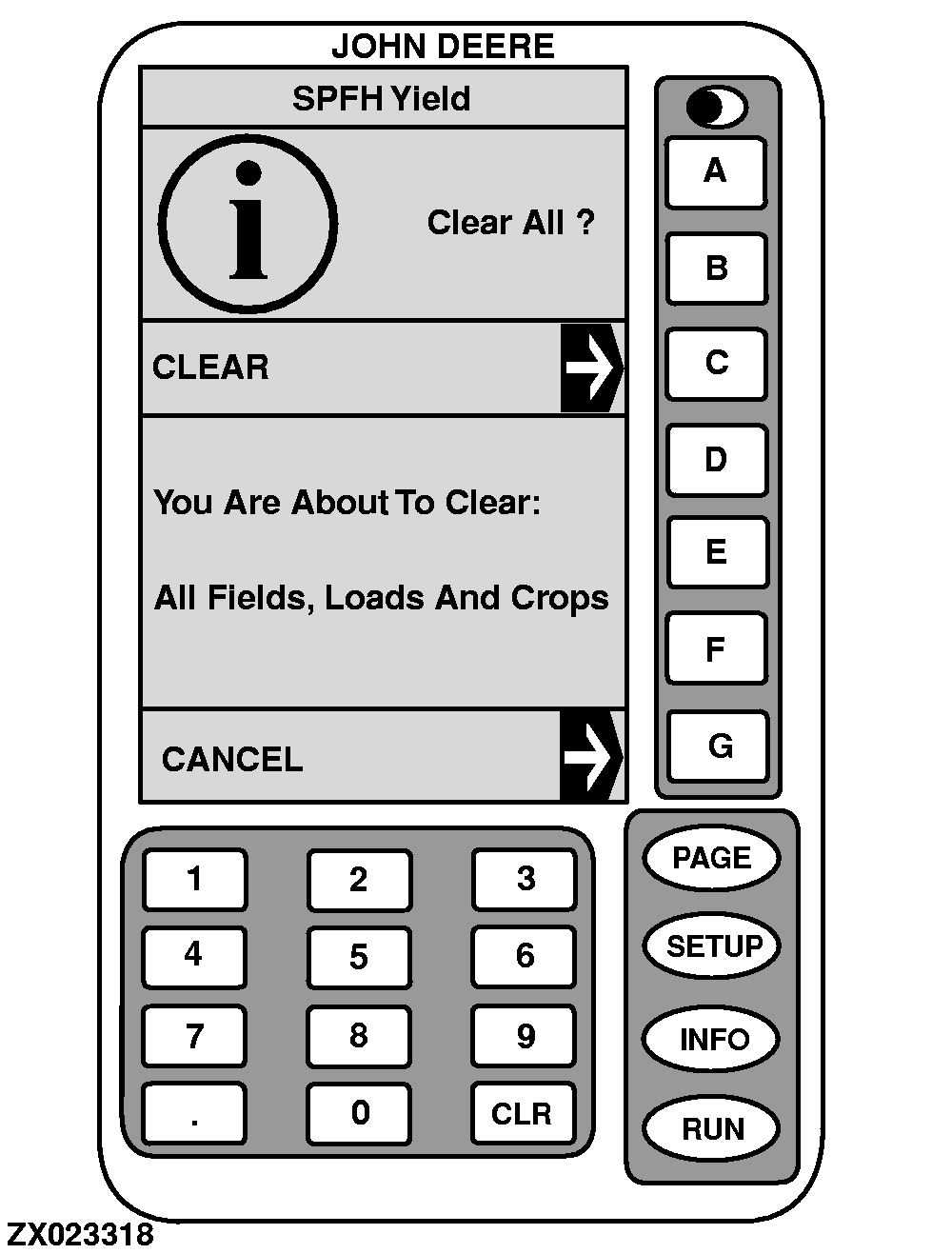
          This function clears all cumulative data. Press key E to clear all data displayed.

              1.

              On "SETUP - Operation Data", press key E . SPFH YIELD will appear.

              2.

              Press key C to confirm.

              3.

              Press key G to cancel clear process.

      ZX023314
      ZX023318

    OUZXMAG,0000843 -19-05JAN01-4/5


            • RESET RUN PAGE SETTINGS

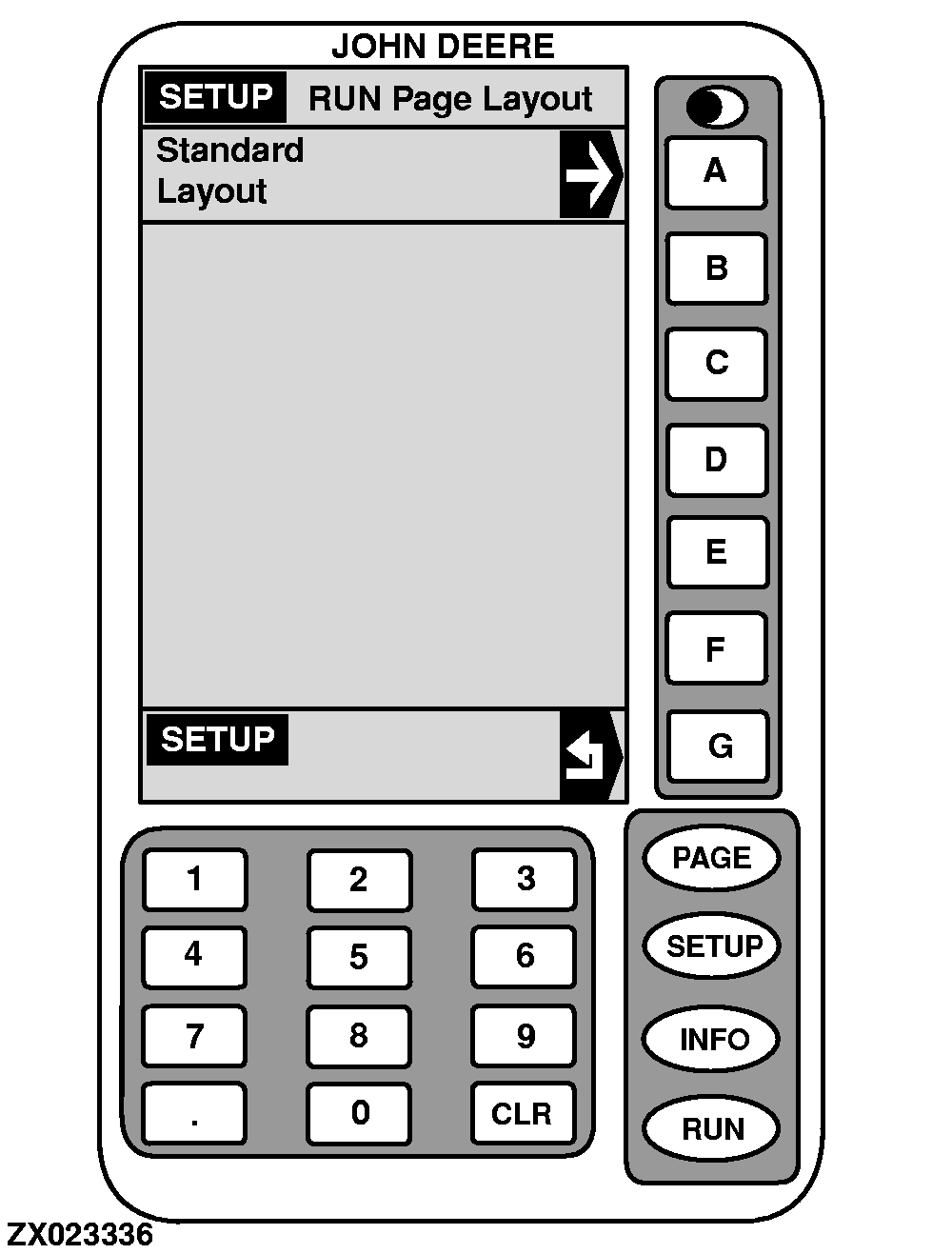
              Press key F to reset all settings entered under RUN PAGES to factory settings then go to "SETUP-Run Page Layout" screen and press key A to put all cell definitions to standard layout.

              NOTE: You can also personalize the cell definition (see "SETUP-Run Pages" in this Section).

      ZX023314
      ZX023336

    OUZXMAG,0000843 -19-05JAN01-5/5