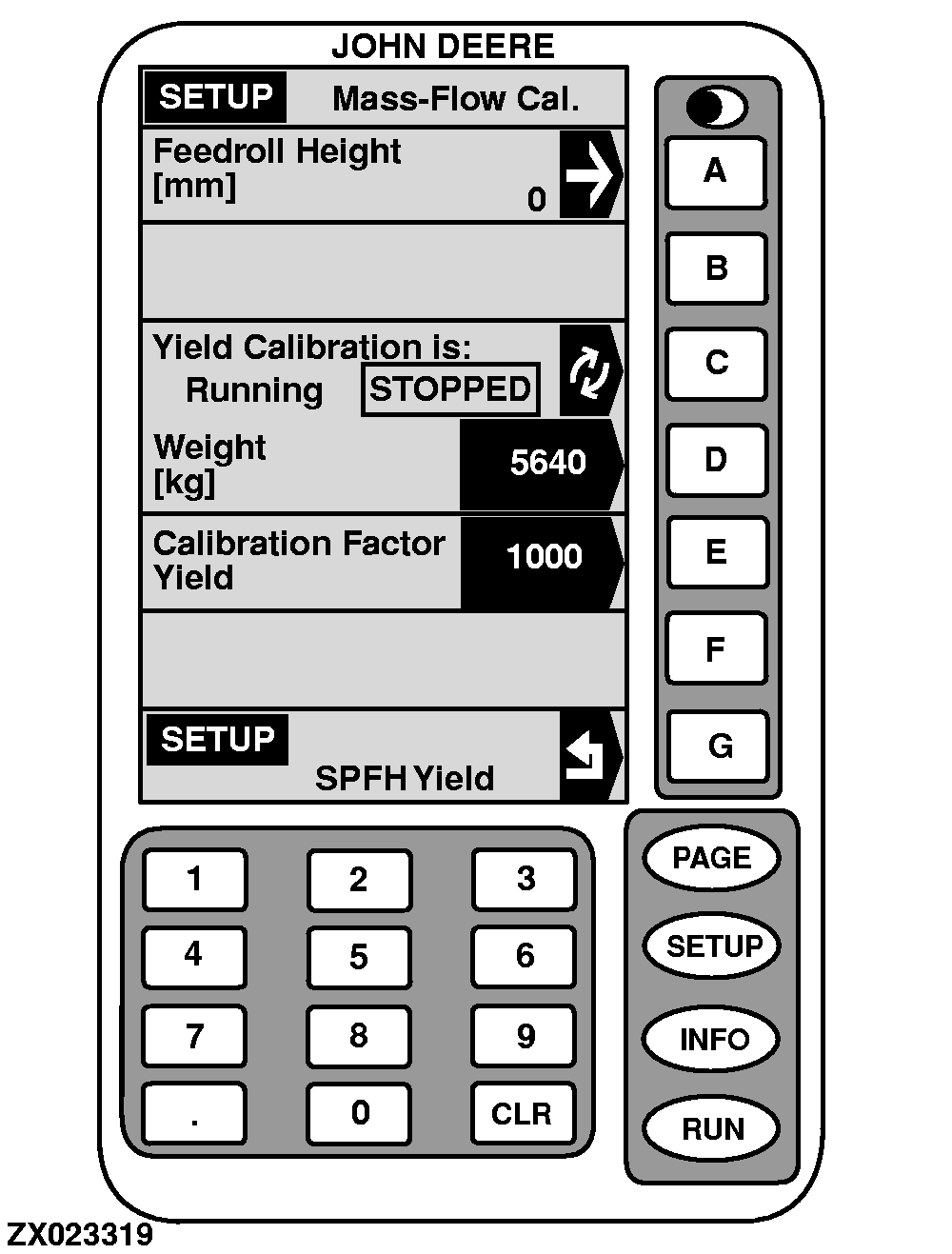
Setup-Mass-Flow Cal.The "SETUP - Mass-Flow Cal." screen is used to calibrate the mass-flow sensor. The purpose is to setup the sensor "zero point" and to adjust the calibration factor so that throughput calculation is accurate. To return to "SETUP - SPFH Yield", press key G .
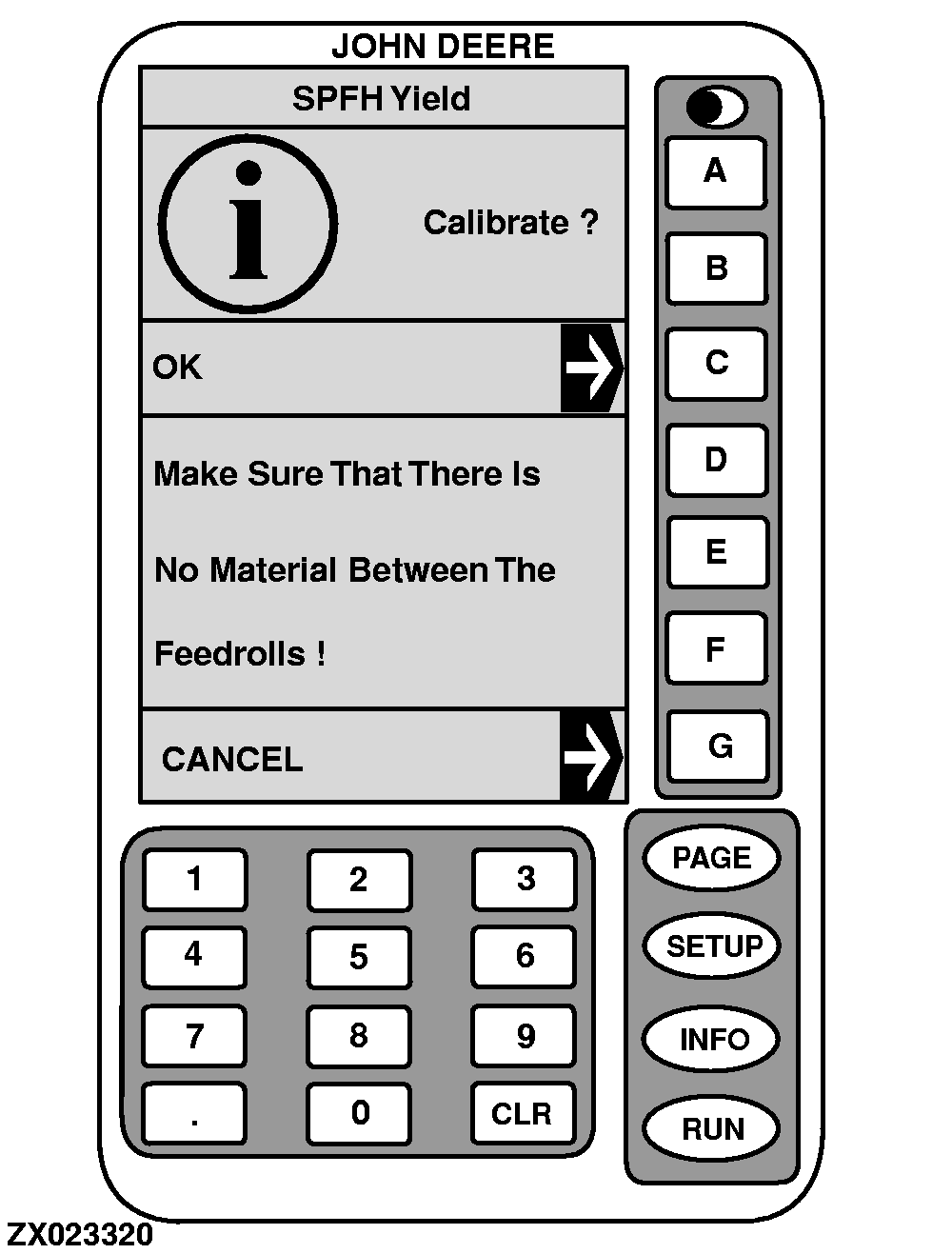
2. Press key C to confirm. NOTE: Calibration of the "feed roll height" takes 5 seconds. 3. Press key G to cancel calibration process. IMPORTANT: Make sure that there is no material between the feed rolls before calibrating. |
|
OUZXMAG,0000845 -19-06JAN01-1/4 |
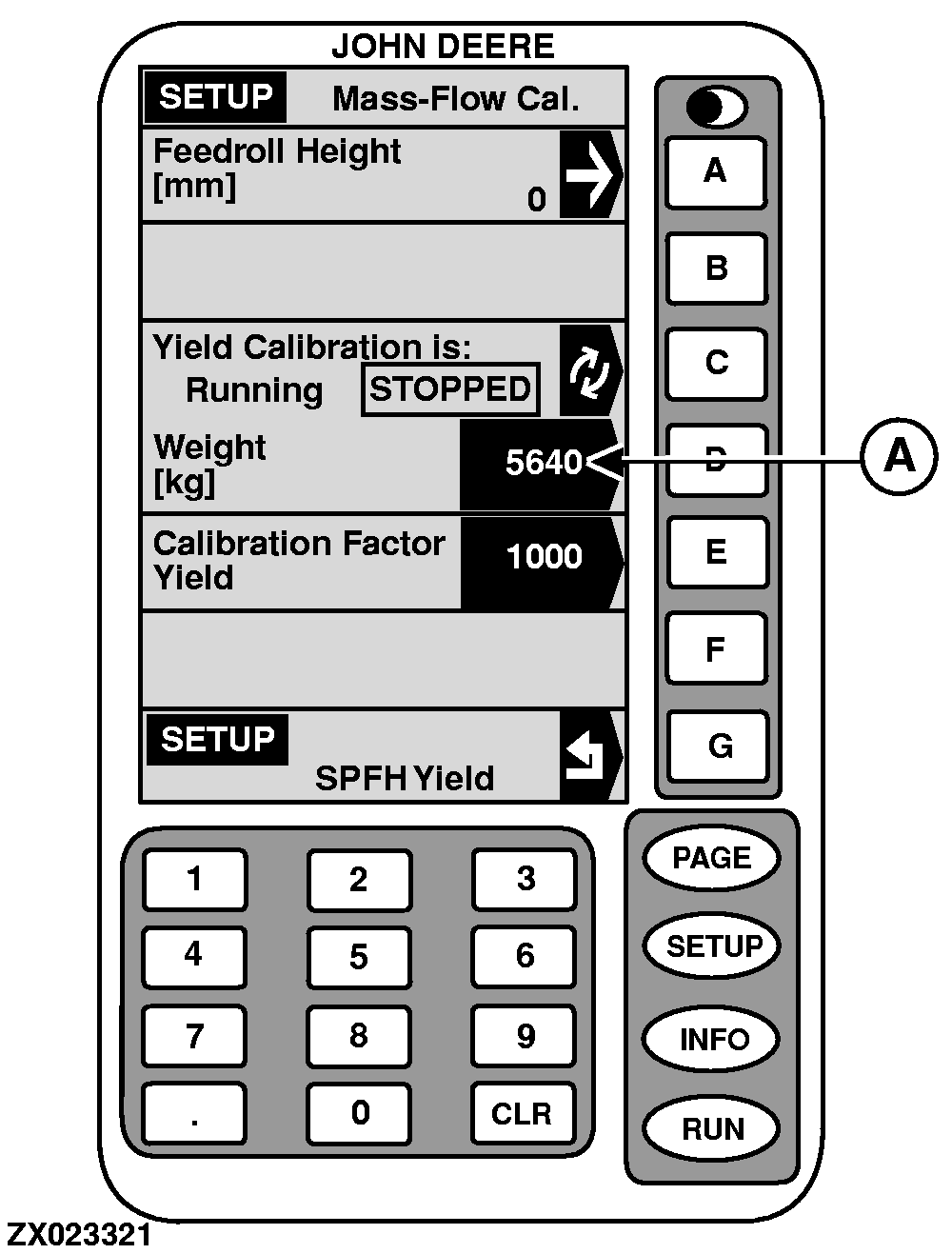
On "SETUP - Mass-Flow Cal.", press key C . Display will change to: Yield Calibration is: Running (shown in a box). Begin harvesting. Weight displayed at (A) in yield calibration should increase while harvesting. Harvest known amount of material (i.e., truck load, wagon load, etc.). When known load is completed, press key C again to stop calibration. Display will change to: Yield Calibration is: Stopped (shown in a box). IMPORTANT: · Be sure that all material is on one vehicle (wagon or truck). NO losses in field! · Do not use loads from starting the field or with reduced working width for calibration. Have known amount of material in truck or wagon weighed. While waiting for scale ticket to return, you may continue harvesting. When scale ticket returns to forage harvester, go to "SETUP - Mass-Flow Cal.". Press key D to change weight value. Using numeric keypad, input net weight of material from scale ticket. |
|
OUZXMAG,0000845 -19-06JAN01-2/4 |
|
IMPORTANT: Changing the calibration factor will NOT change data already saved. After changes are made, all harvest information collected from that point will reflect the changes. Press key D to enter new value. Calibration factor will change automatically when material weight is entered. NOTE: If scale ticket weight is more than 50% higher or lower than displayed weight, the system will NOT allow entry of scale ticket weight. It is recommended that you review the harvesting procedures and verify that the vehicle hauling material away from the forage harvester is also following the correct procedures. At that time, attempt another calibration load. Enter moisture correction (see "SETUP - Moisture Cal." in this Section). |
|
OUZXMAG,0000845 -19-06JAN01-3/4 |
Press key E to manually enter calibration factor. Using numeric keypad, input calibration factor. Press key E to enter new value. Example: Displayed Calibration Factor = 1000 Weight of grain shown on display = 5640 kg Net weight of grain from scale ticket = 5710 kg Result: 1000 x (5640 ÷ 5710) = 987 |
|
OUZXMAG,0000845 -19-06JAN01-4/4 |